
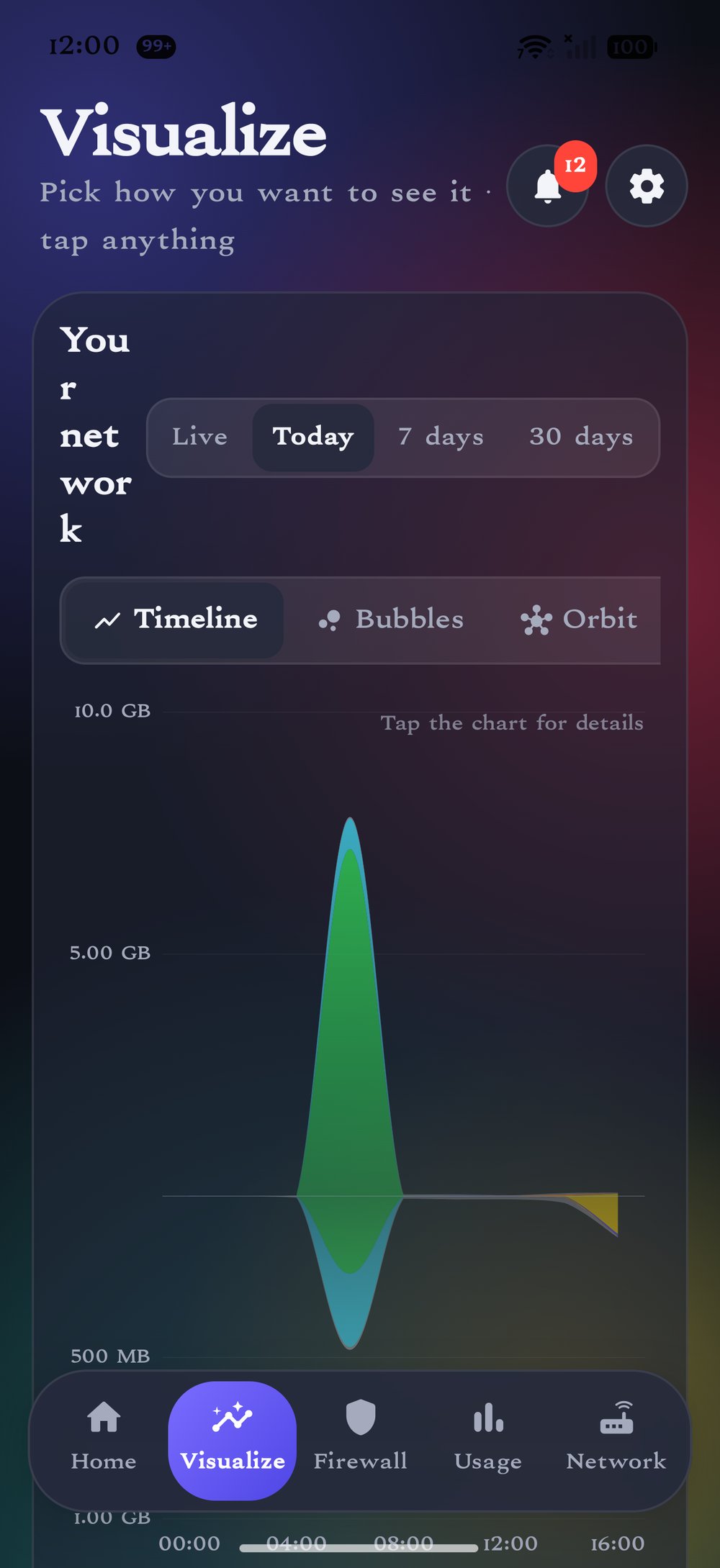
Timeline
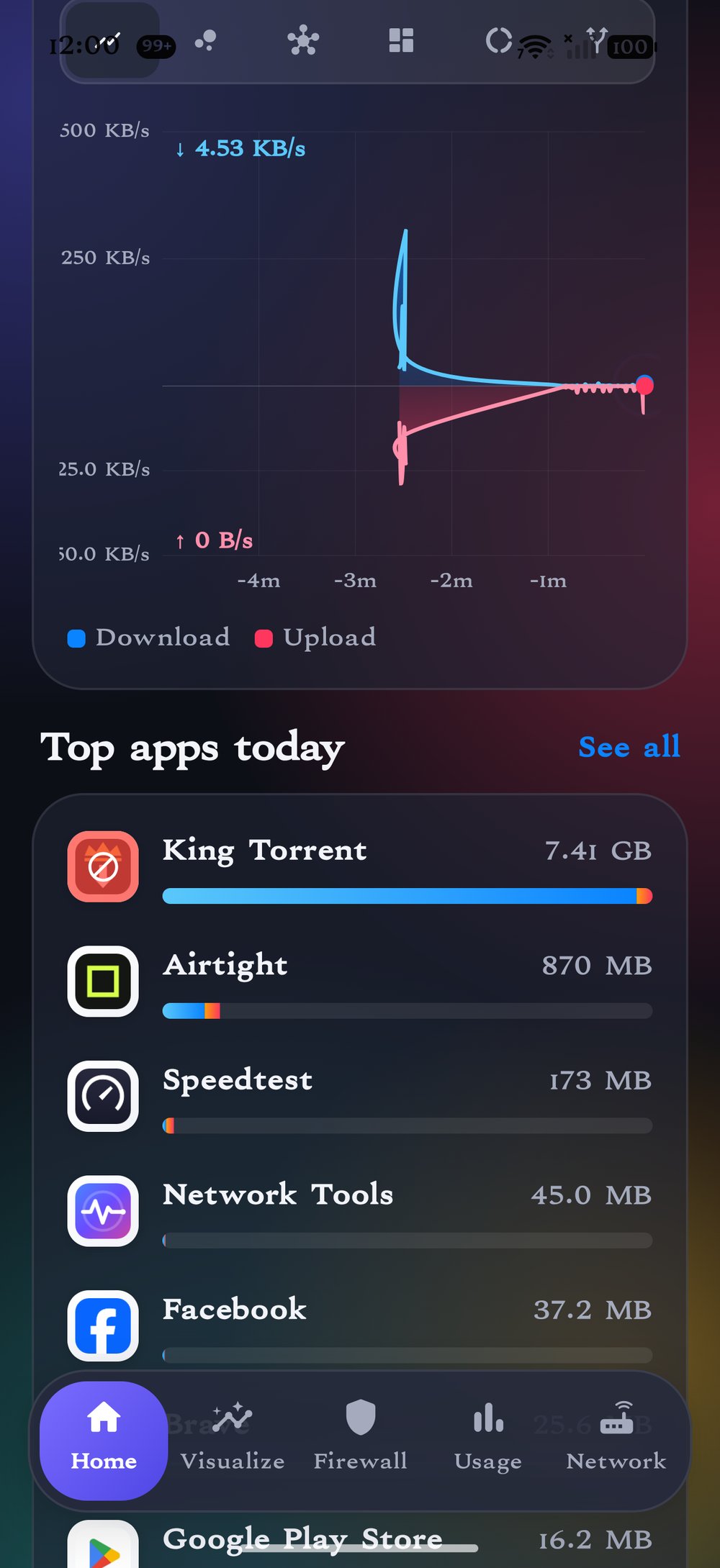
Download above the line, upload below, mobile data in orange.
For Android 10 and later
Ghost Firewall
Quite possibly the best firewall on Android.
See every app. Control what it connects to. On Android.
Ever wondered if something was draining your connection in the background, using up your bandwidth or eating into your data allowance?
Ghost Firewall shows you exactly what every app on your phone sends and receives, and lets you control it. It has a per-app firewall, its own VPN connections (WireGuard, SOCKS5 and Tailscale), and a colourful interface.
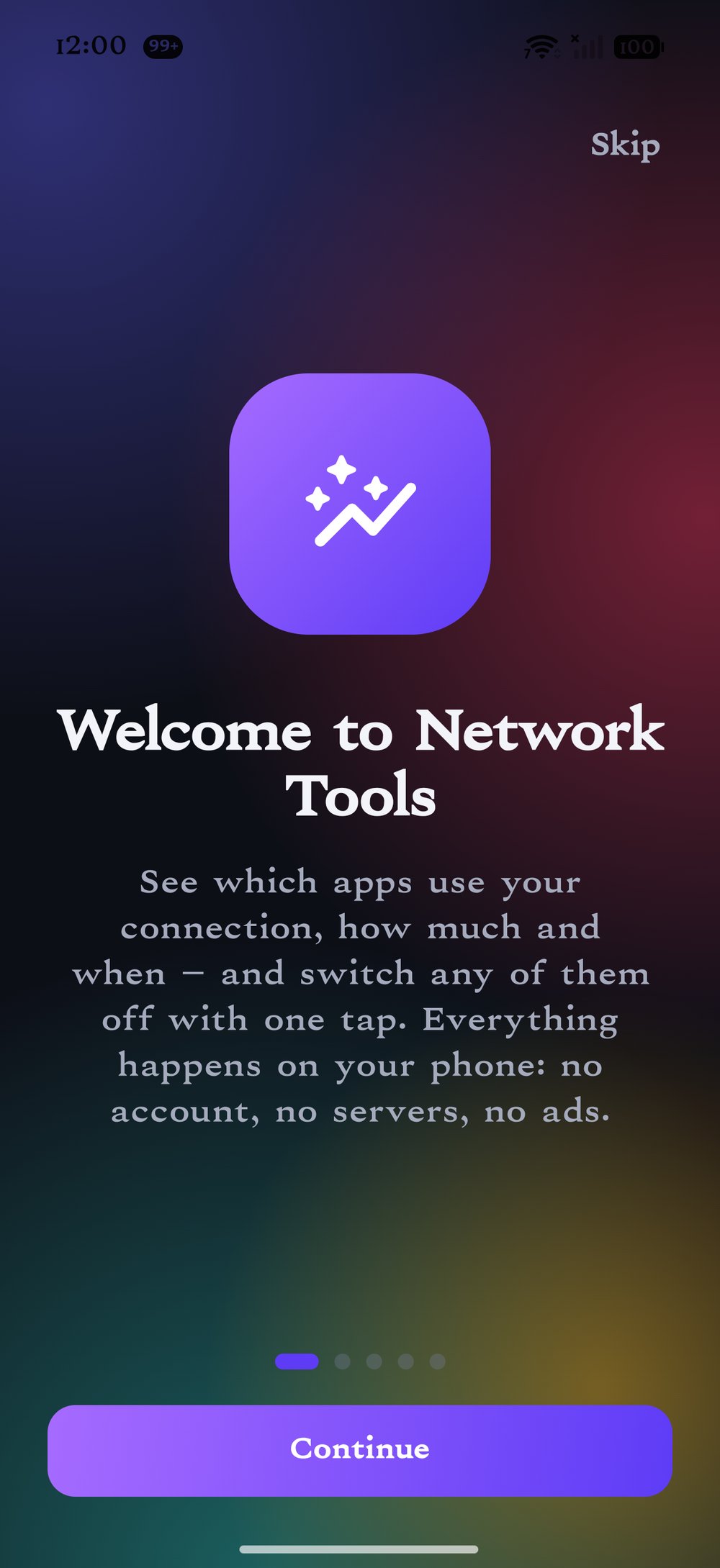
It is Android-only for now, built in Kotlin and Jetpack Compose, for Android 10 and later. There are no accounts, no ads and no analytics.
Ghost Firewall is made for Android. Android lets apps see and control each app's network traffic, which a per-app firewall needs, and iPhone doesn't allow that in the same way. It is written in Kotlin with Jetpack Compose. The code is our own, plus Apache, BSD, MIT and ISC-licensed libraries. There are no proprietary SDKs and no GPL code.
It didn't matter if I turned my Tailscale off and then turned my VPN on, somehow Tailscale would start up again and stop my internet from working. It's not Tailscale's fault. The reason I created this app was because I was fed up of turning my Tailscale on and turning my VPN off and going backwards and forwards with both of them. So this app does it for you. Plus, I wanted a good visualization of what was going on on my phone, what was using the internet, and now I've got it. So I built it. It's just the way it is, and I decided to fix it. With a kill switch on both. While I was sorting out the problem with the VPN and Tailscale, I also thought I wanted to see a firewall in a much more visual way, so I came up with this.
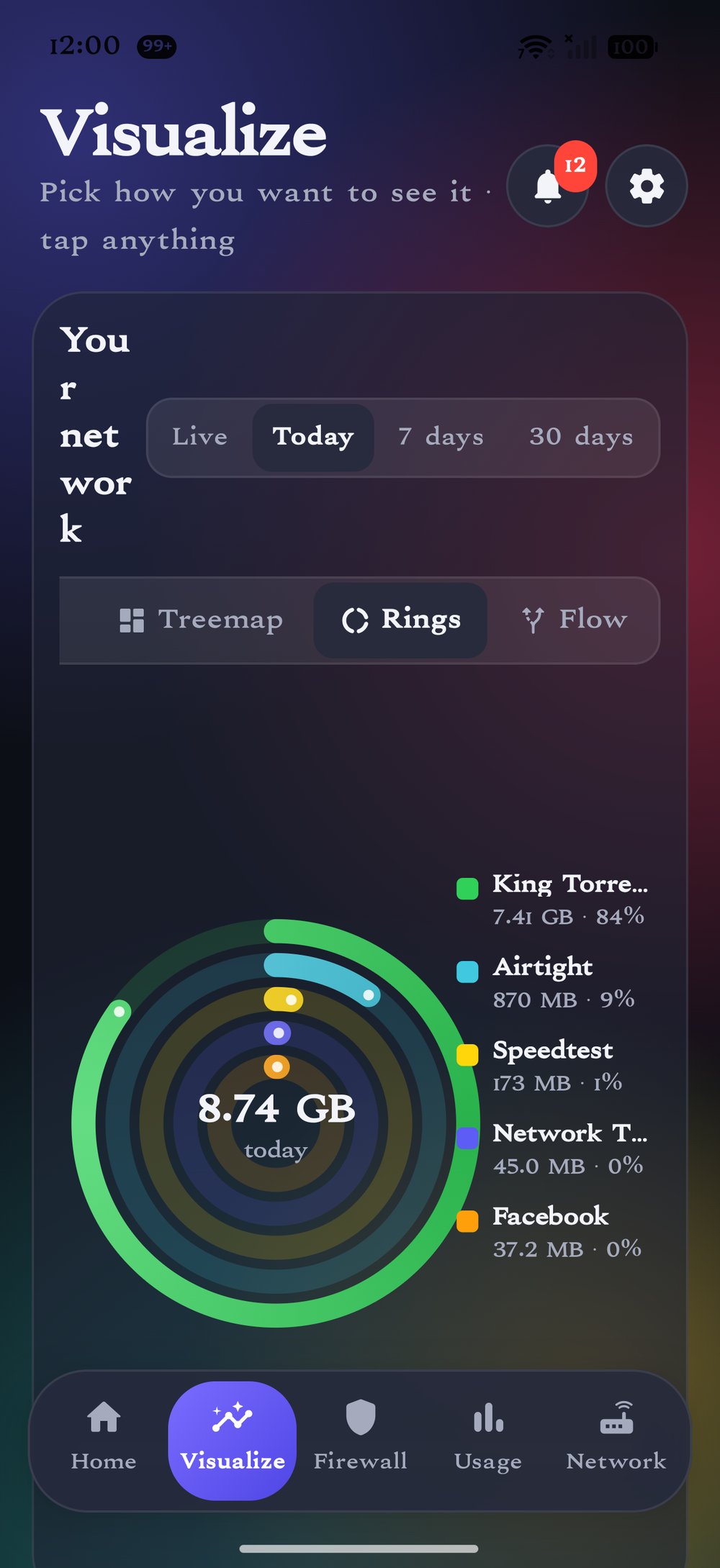
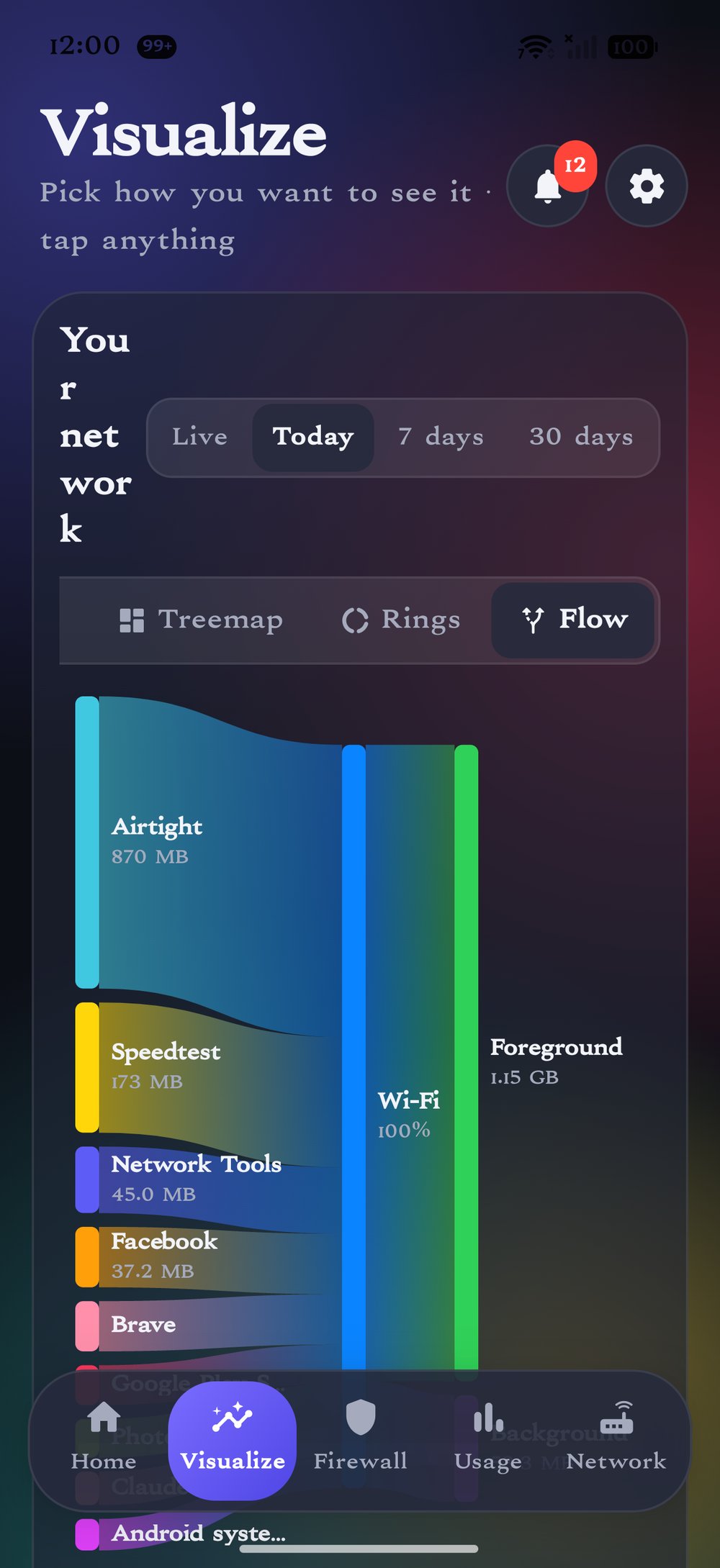
Six ways to see your firewall. Choose the one that suits you.
Download above the line, upload below, mobile data in orange.

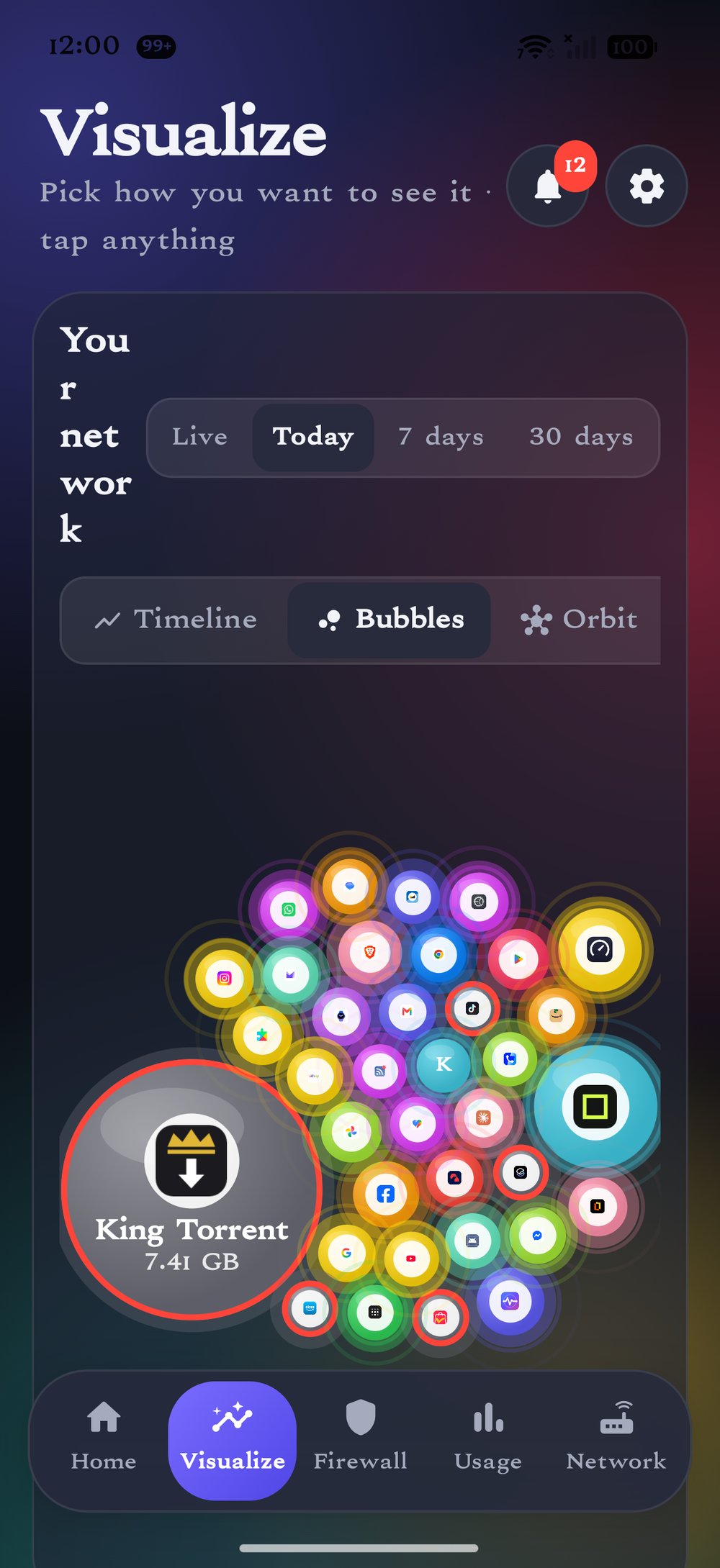
Bigger bubble means more data.

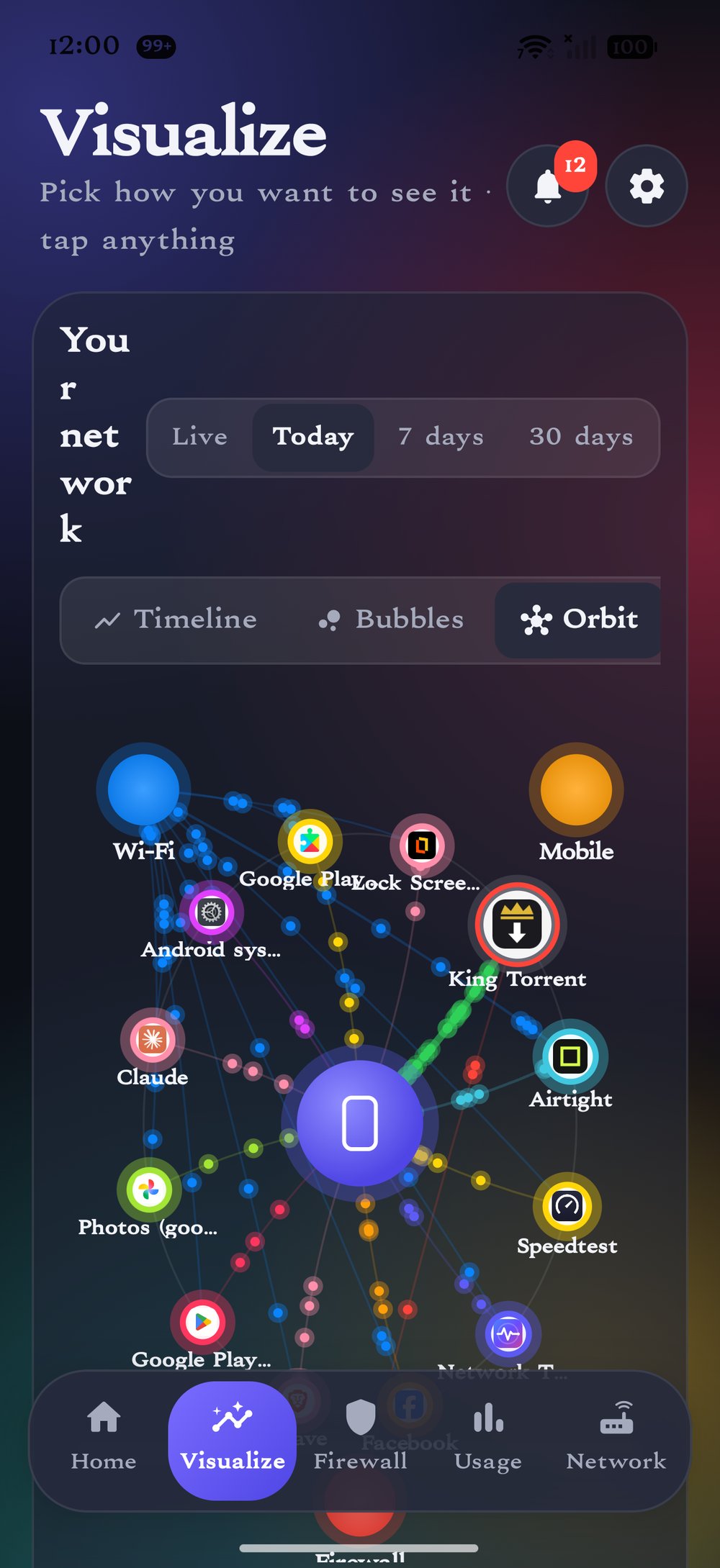
Your phone in the middle, apps around it, data flowing out to Wi-Fi or mobile, or into the firewall.

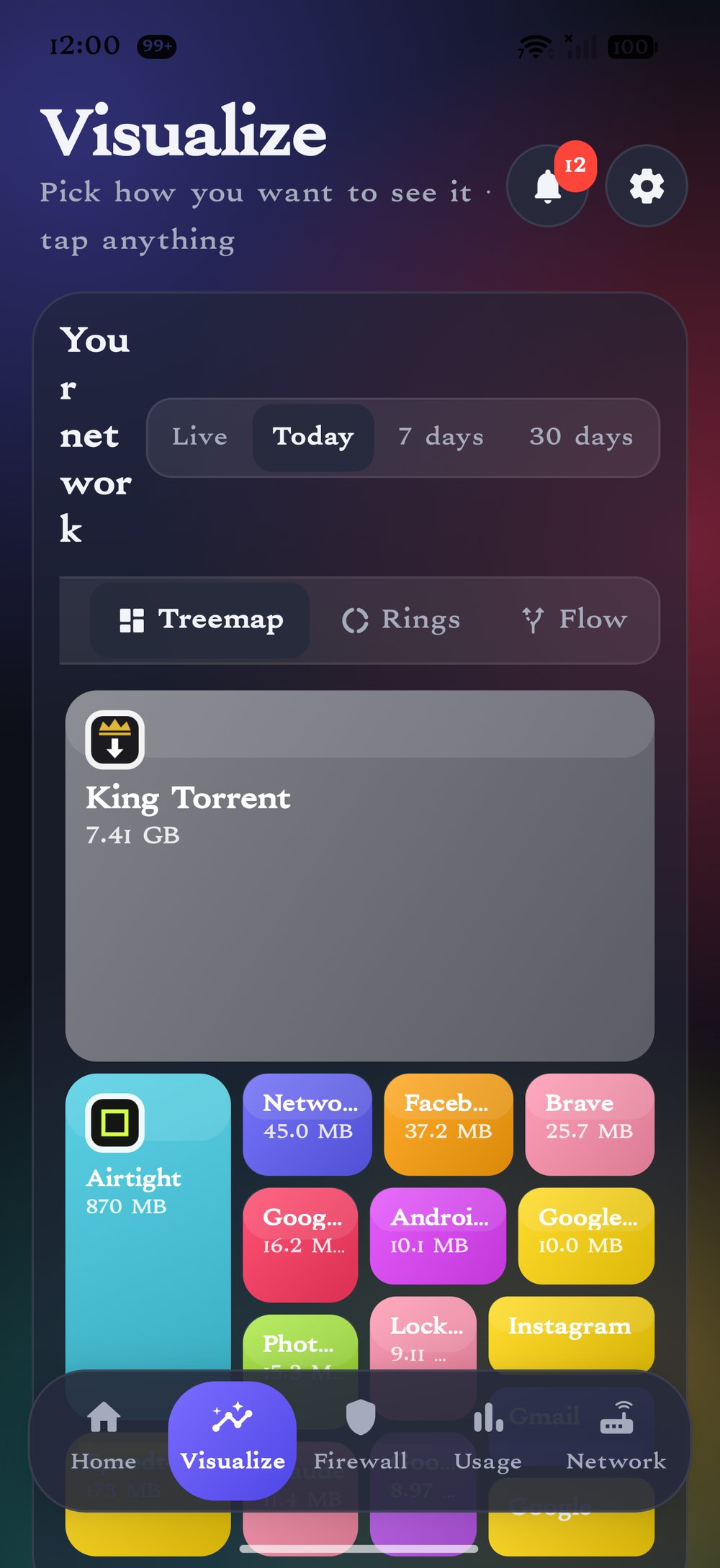
Each app's share as a block.

Each app's share as a ring.

How each app's data splits between Wi-Fi and mobile, and between foreground and background.
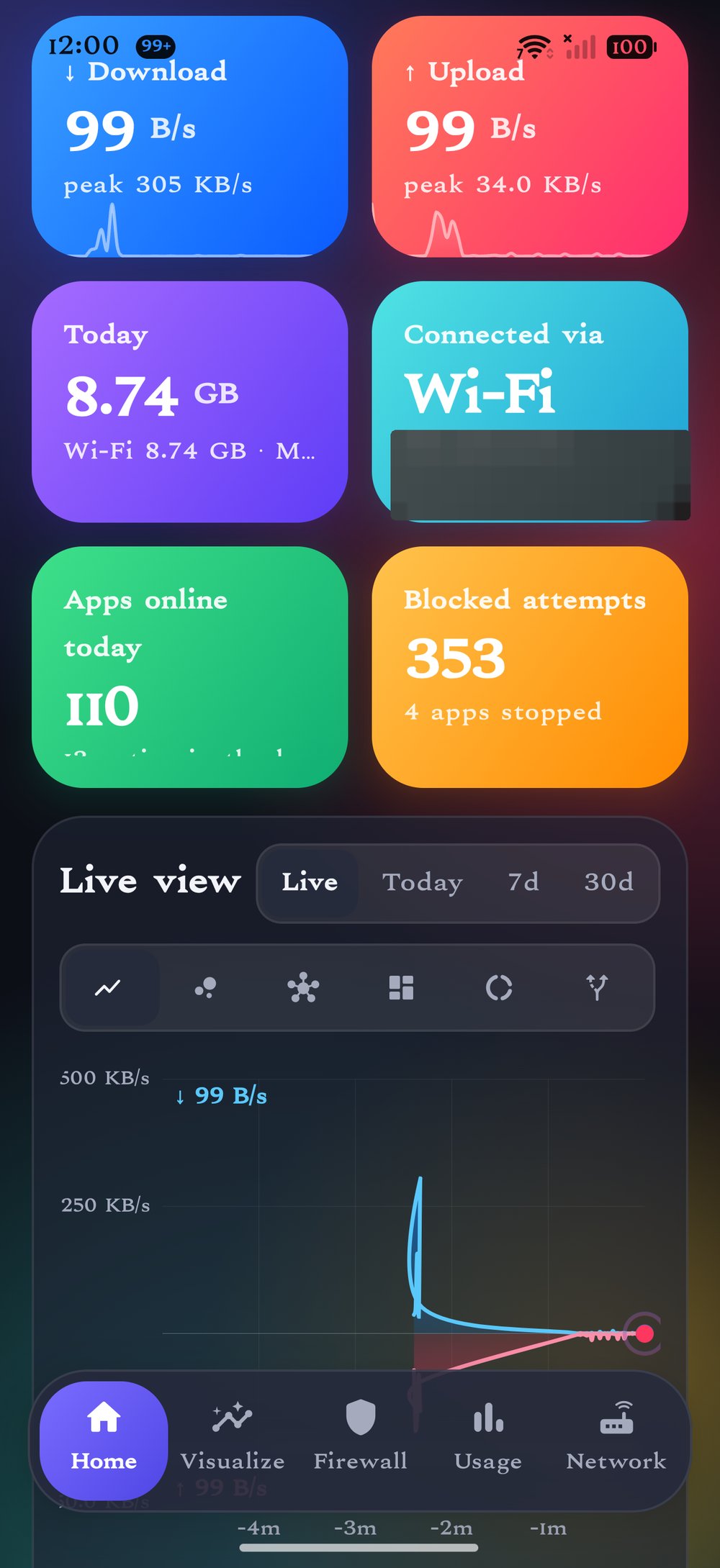
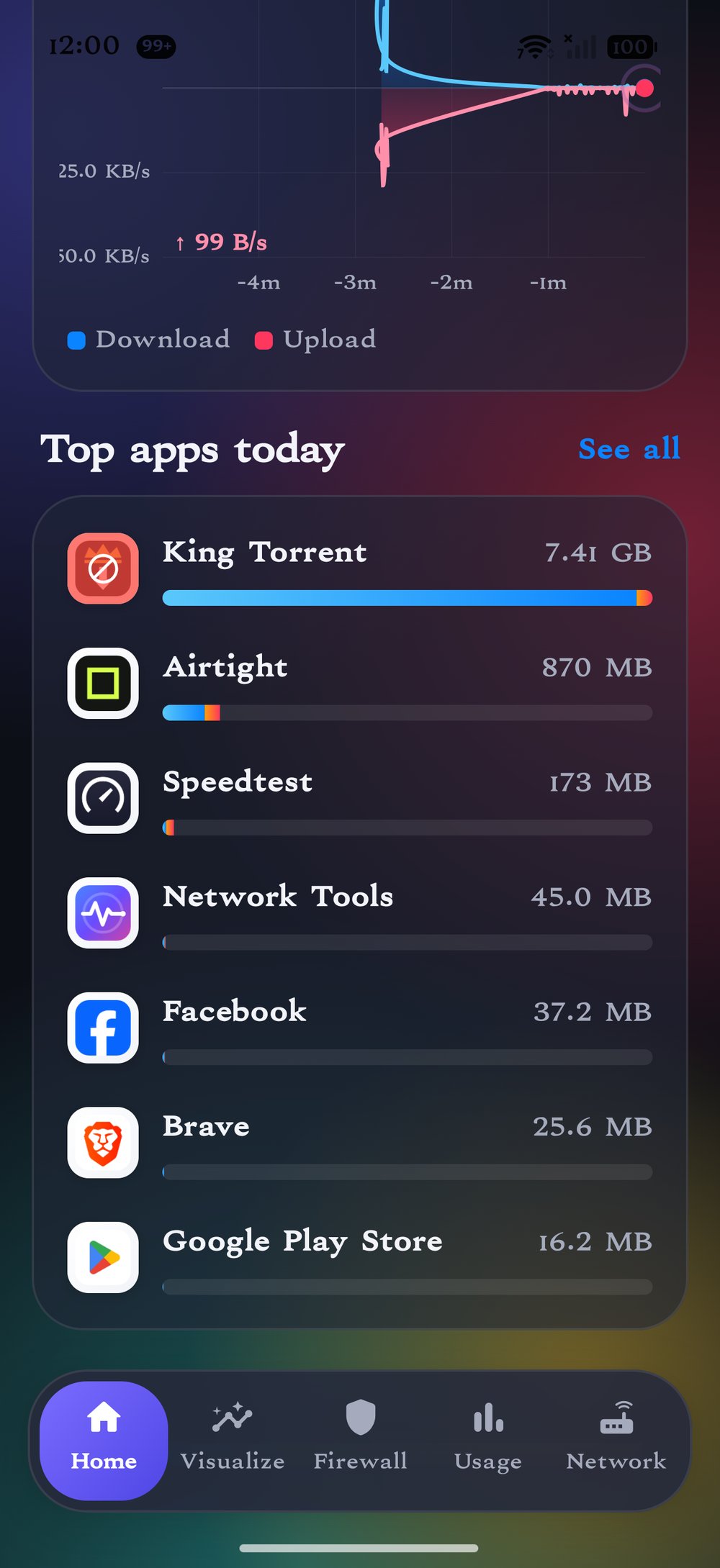
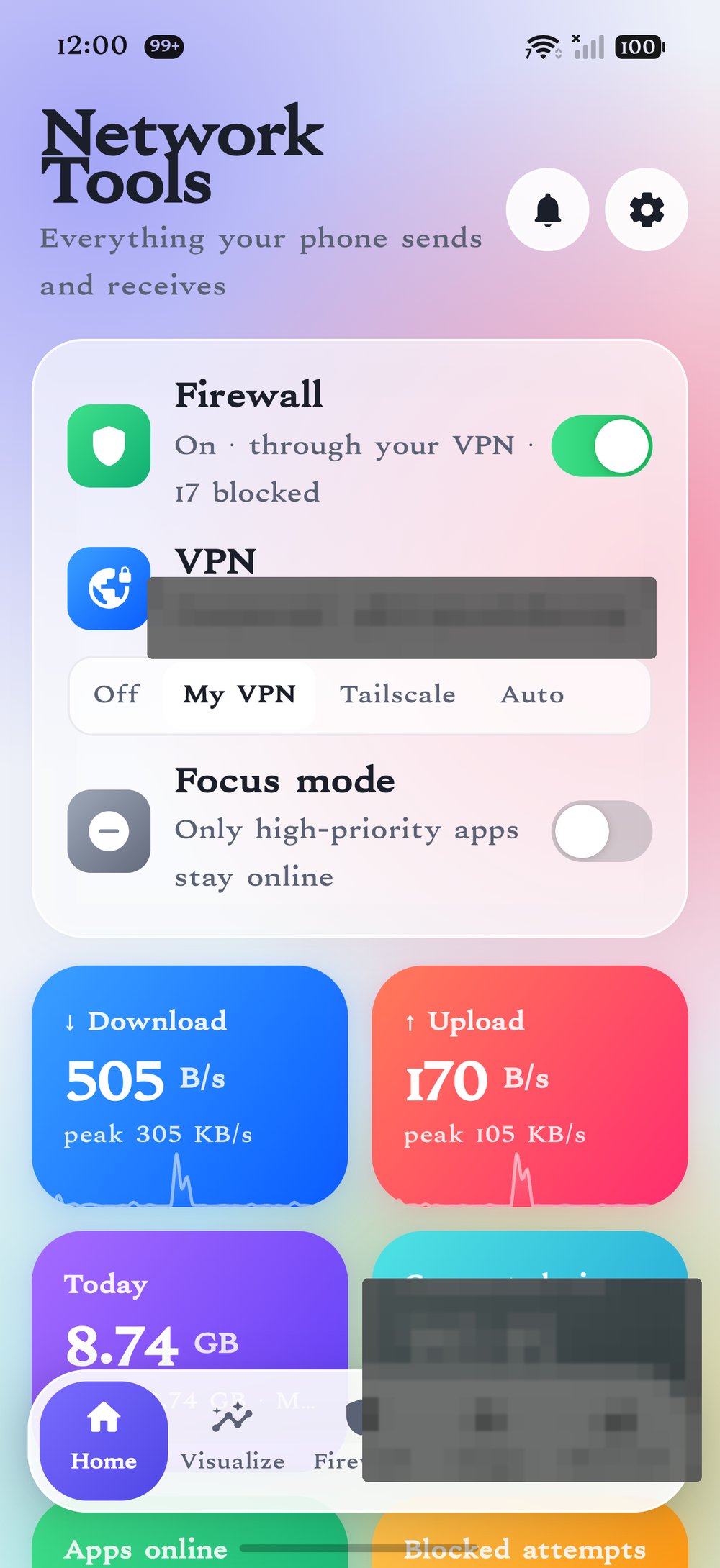
The Home tab is the first place you land. It shows live download and upload speed, each with its peak and a small graph. Today's total data, split into Wi-Fi and mobile. What you're connected through (Wi-Fi, mobile or Ethernet) and your IP address. How many apps went online today, and how many blocked attempts there were. A small live visual, and the top 7 apps today with download/upload bars.
The control card has a Firewall switch; a VPN switch with four choices: Off · My VPN · Tailscale · Auto. A status line shows what's running — for example your VPN profile name, “Tailscale · Connected”, or “Auto · Tailscale (Other Wi-Fi)” — and › opens its settings. And a Focus mode switch: only high-priority apps stay online.
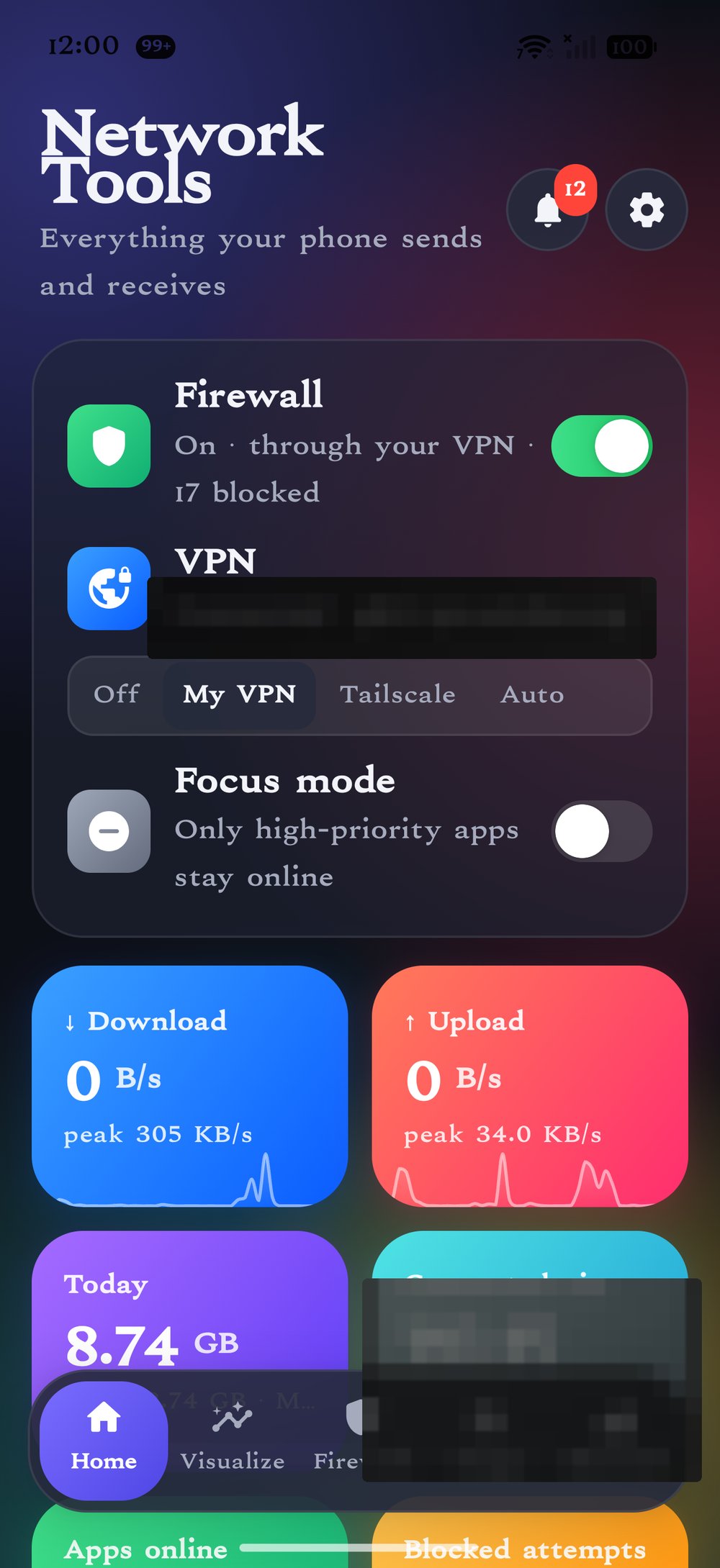
The way this visualizes your network is done with finesse. This is a new era for visuals as far as we are concerned for the Android phone.
Six ways to see your traffic, and you can tap anything:
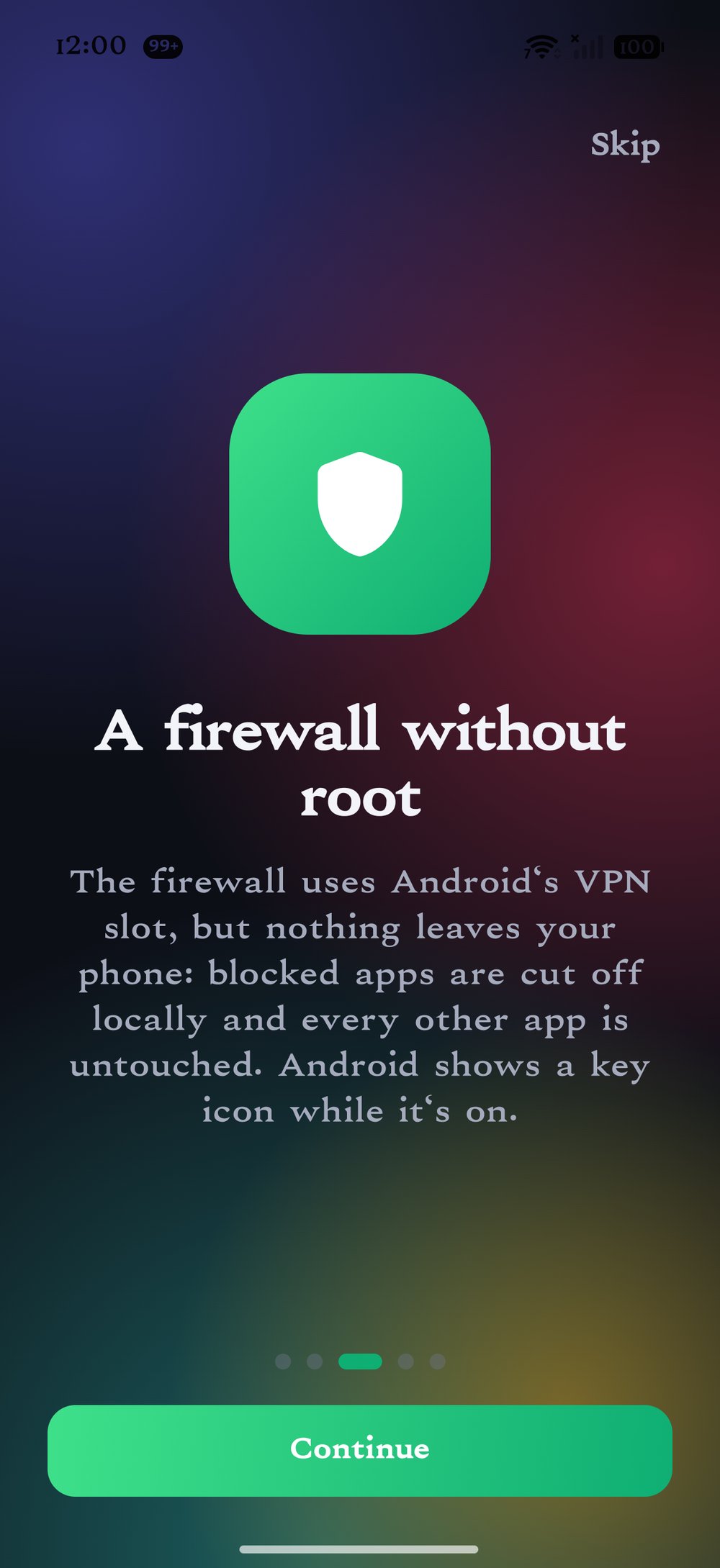
Android has no firewall feature that ordinary apps can use, so Ghost Firewall runs a local VPN on the phone. Nothing goes to any server of ours.
In Normal mode, only blocked apps are sent into it, and their traffic is dropped on the phone. Blocked apps get an instant “connection refused” instead of hanging. Allowed apps aren't touched at all.
In Deep mode, every app goes through the app's own built-in network handling. That makes possible a log of every connection, with app, host name and bytes; your own choice of DNS server; and bandwidth priority. DNS choice: Automatic, Cloudflare, Quad9, Google, or up to four custom servers.
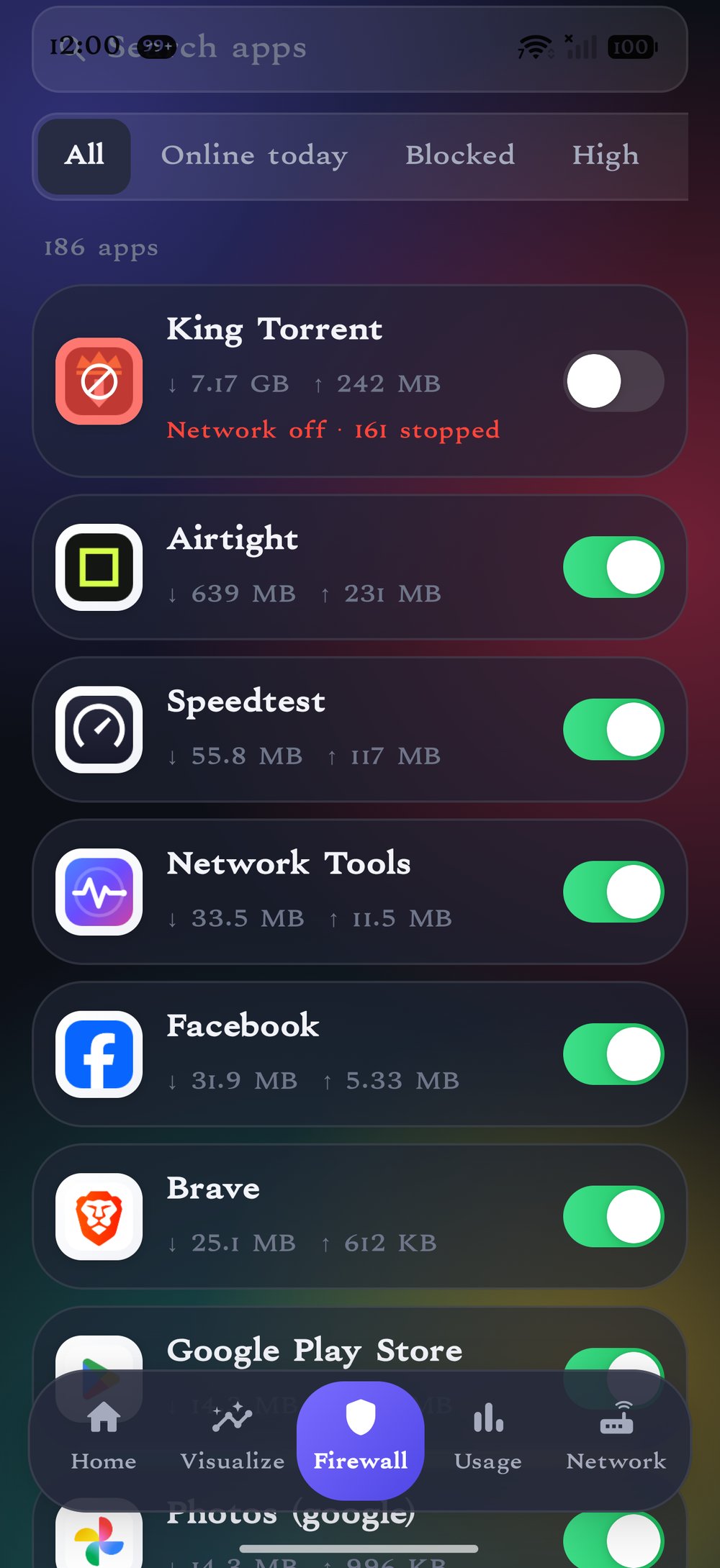
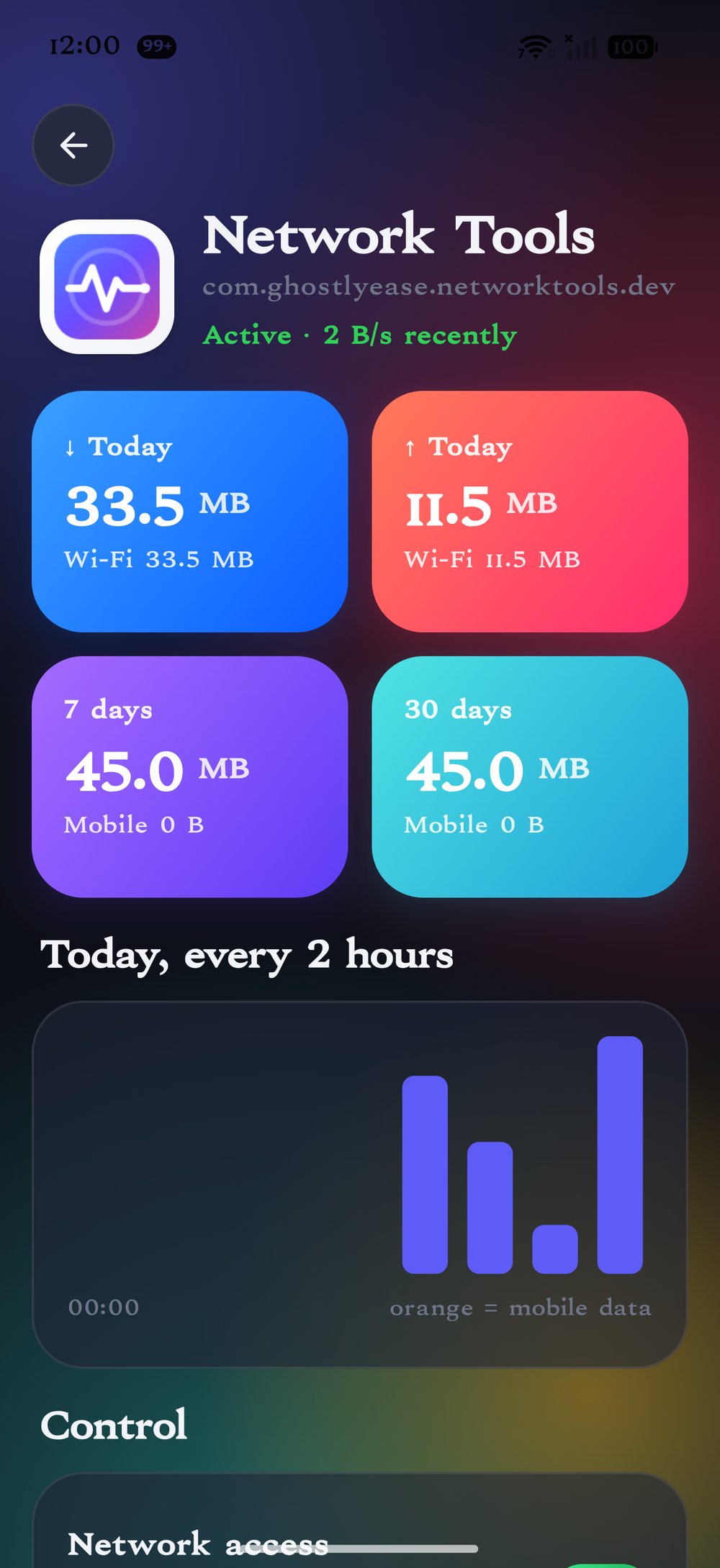
Every app is searchable, with its usage. For each app you can set network access: allowed, blocked, Wi-Fi only, or mobile only. When a VPN or Deep mode is on, you can also set the route: through the VPN, direct, or blocked. The app detail page shows that app's usage history and its live connections.
Use them your way: turn the firewall off and keep the VPN on, or let chosen apps skip the VPN, so things like your banking app still connect directly. If you need to let Netflix or Disney+ bypass the VPN, you can with a simple click of the switch.
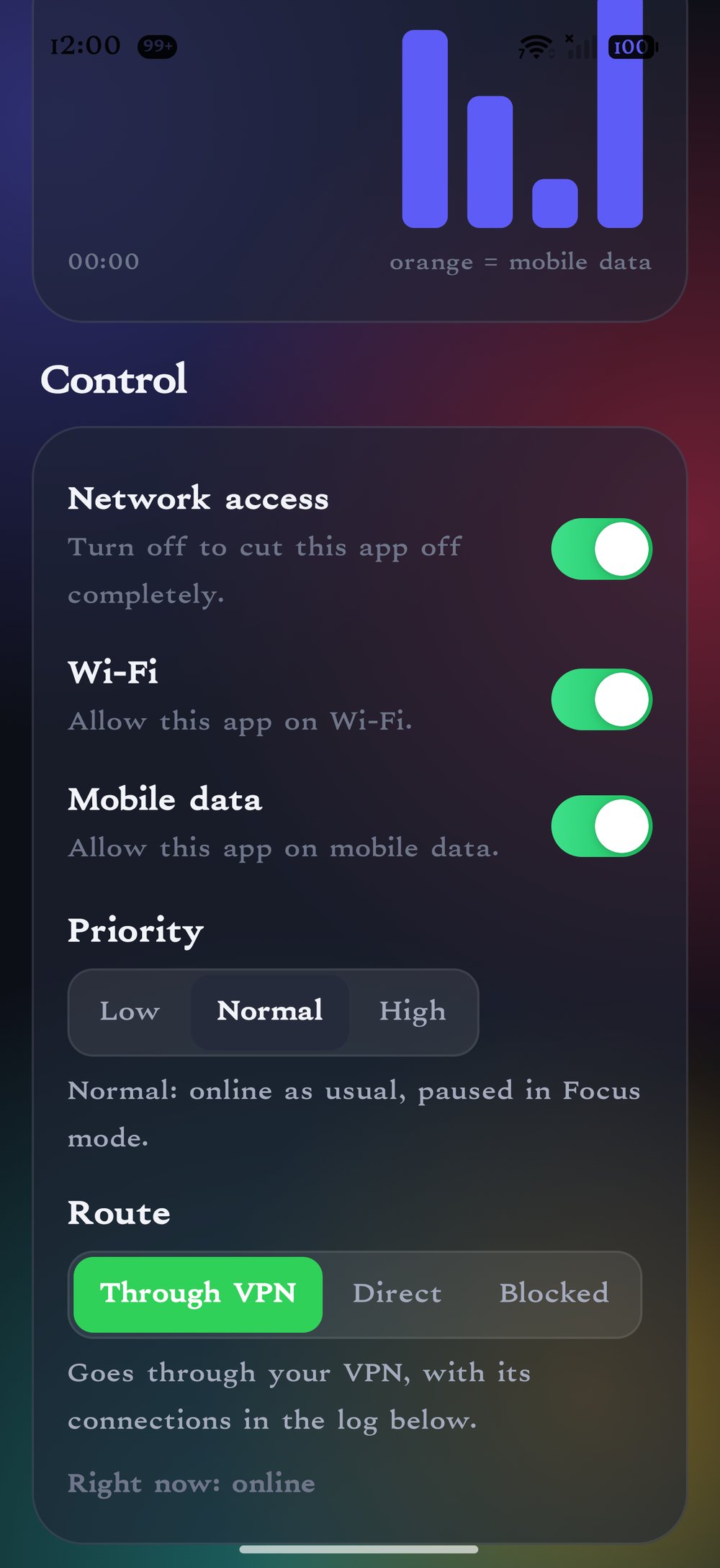
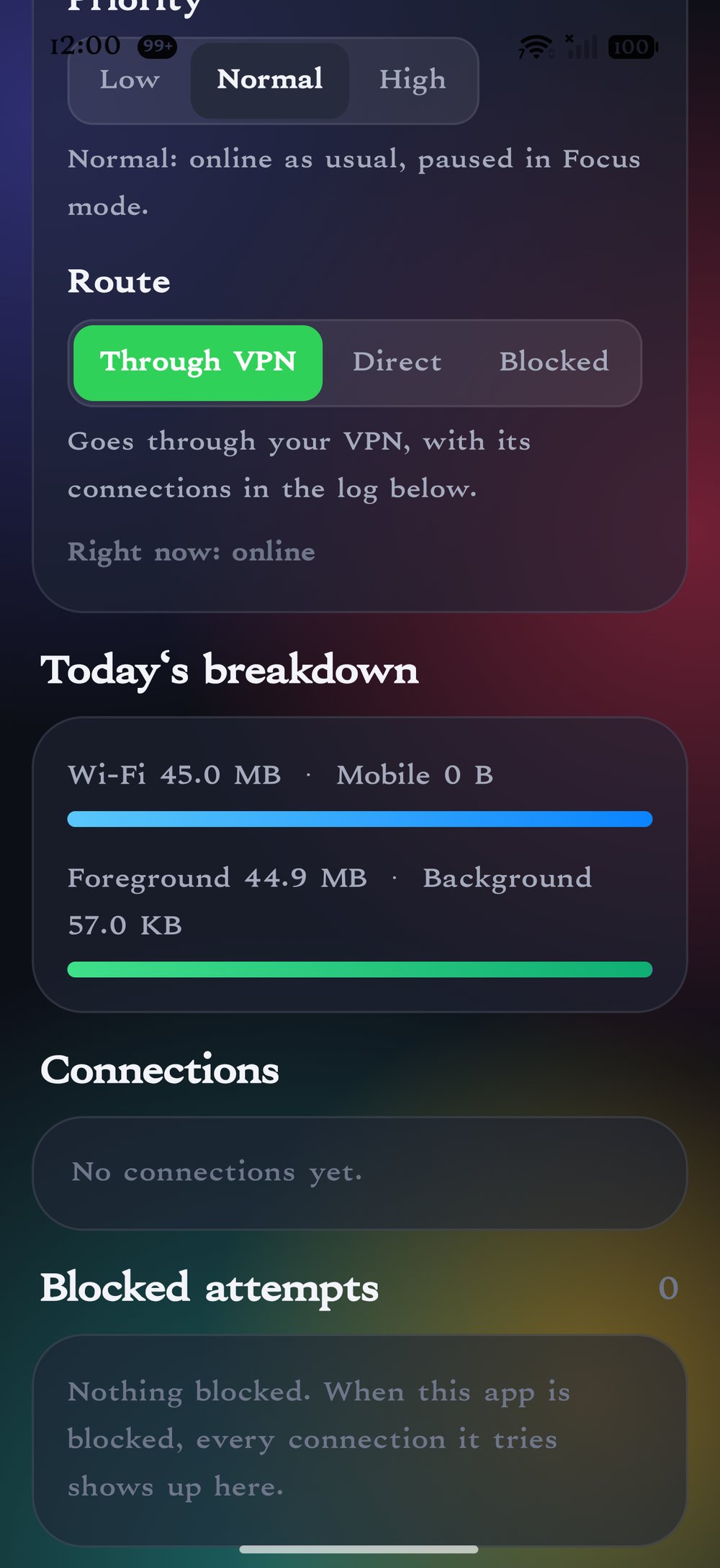
Give every app a priority: High, Normal or Low. Turn on Focus mode and only your high-priority apps stay online, so nothing else gets in the way. Low-priority apps go offline while your screen's off, so they can't quietly use data in the background. And while a high-priority app is busy, low-priority apps slow down to a rate you choose, from 64 KB/s to 4 MB/s.
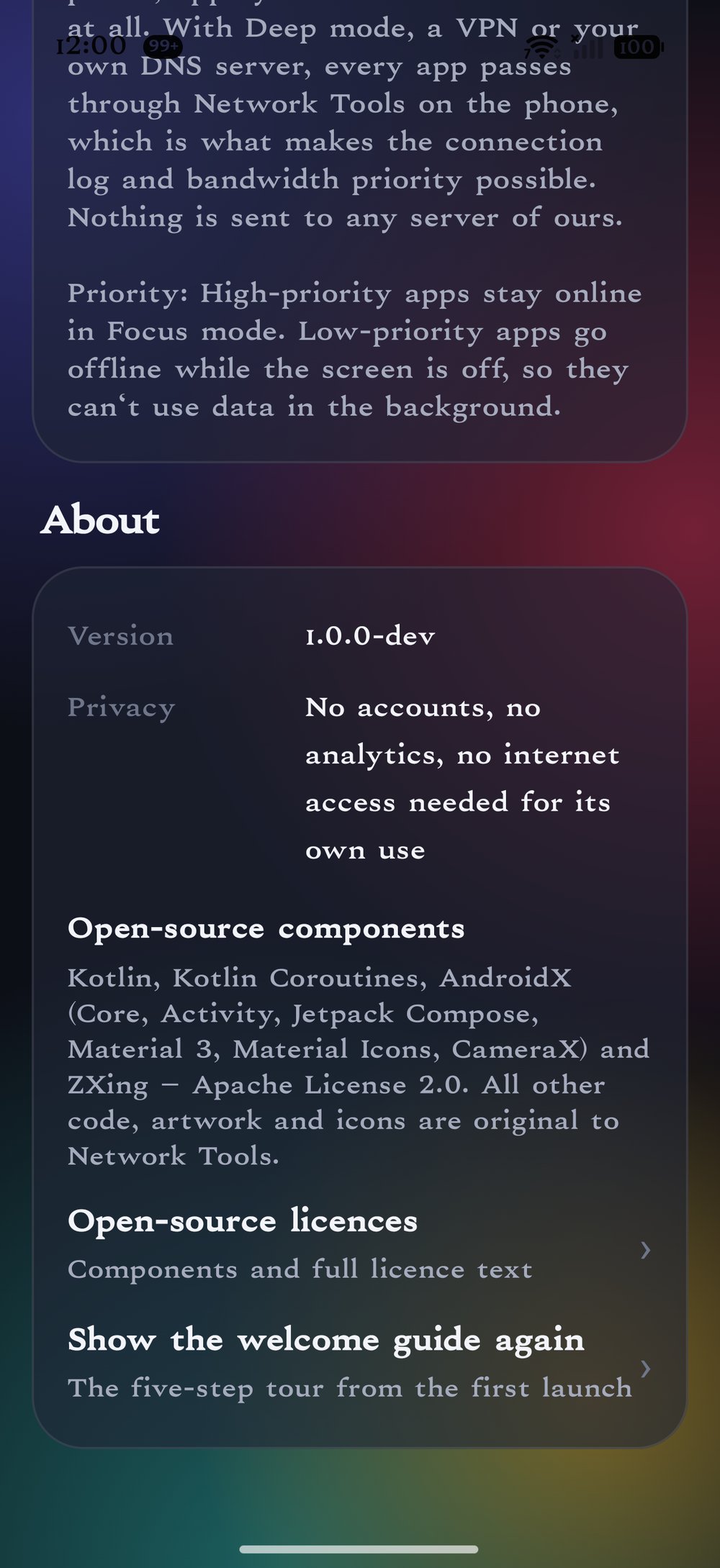
Priority: High, Normal or Low. High-priority apps stay online in Focus mode. Low-priority apps go offline while the screen is off, so they can't use data in the background. While a high-priority app is busy, low-priority apps are slowed to a rate you choose (64 KB/s to 4 MB/s).
Focus mode is on the Home control card, and there is also a Quick Settings tile for it (there isn't a screenshot of the tile in this set).
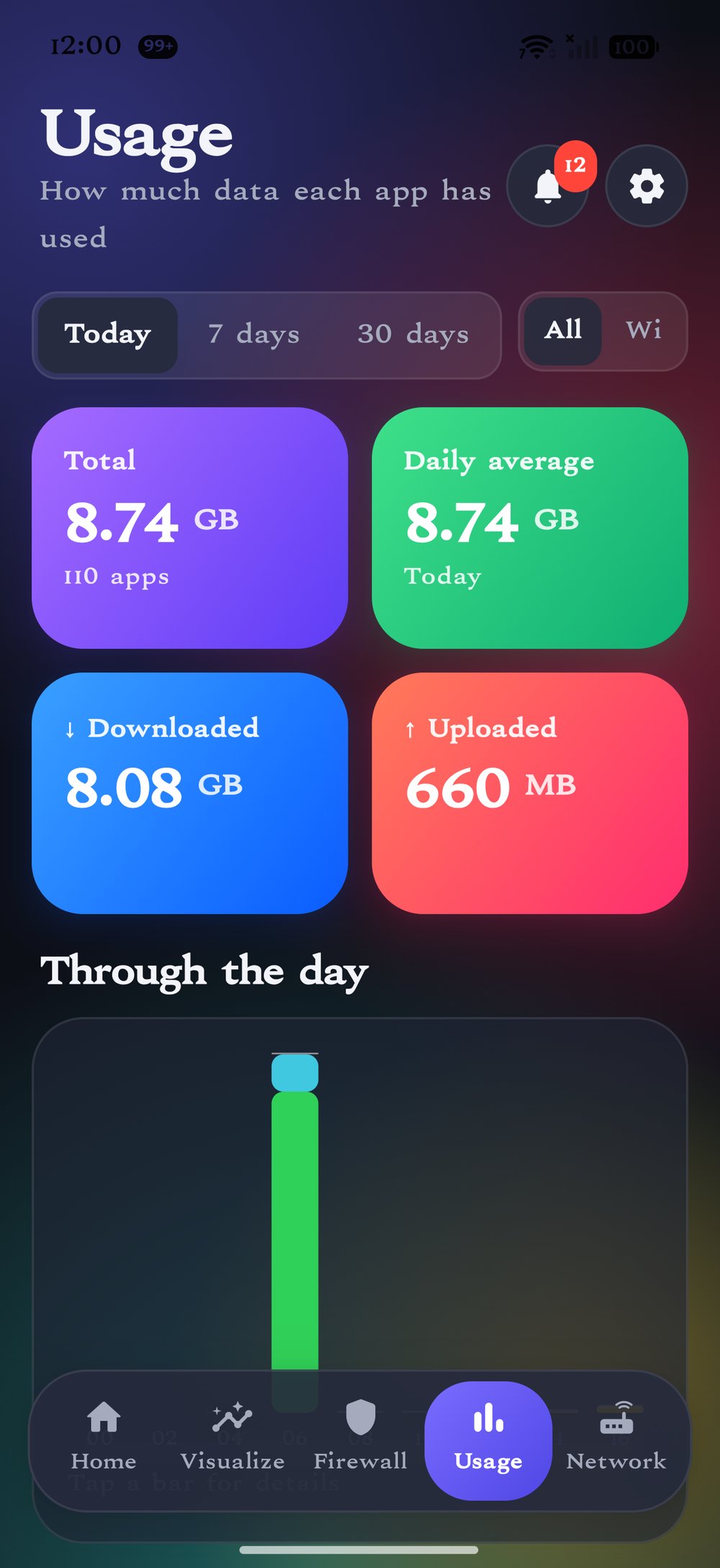
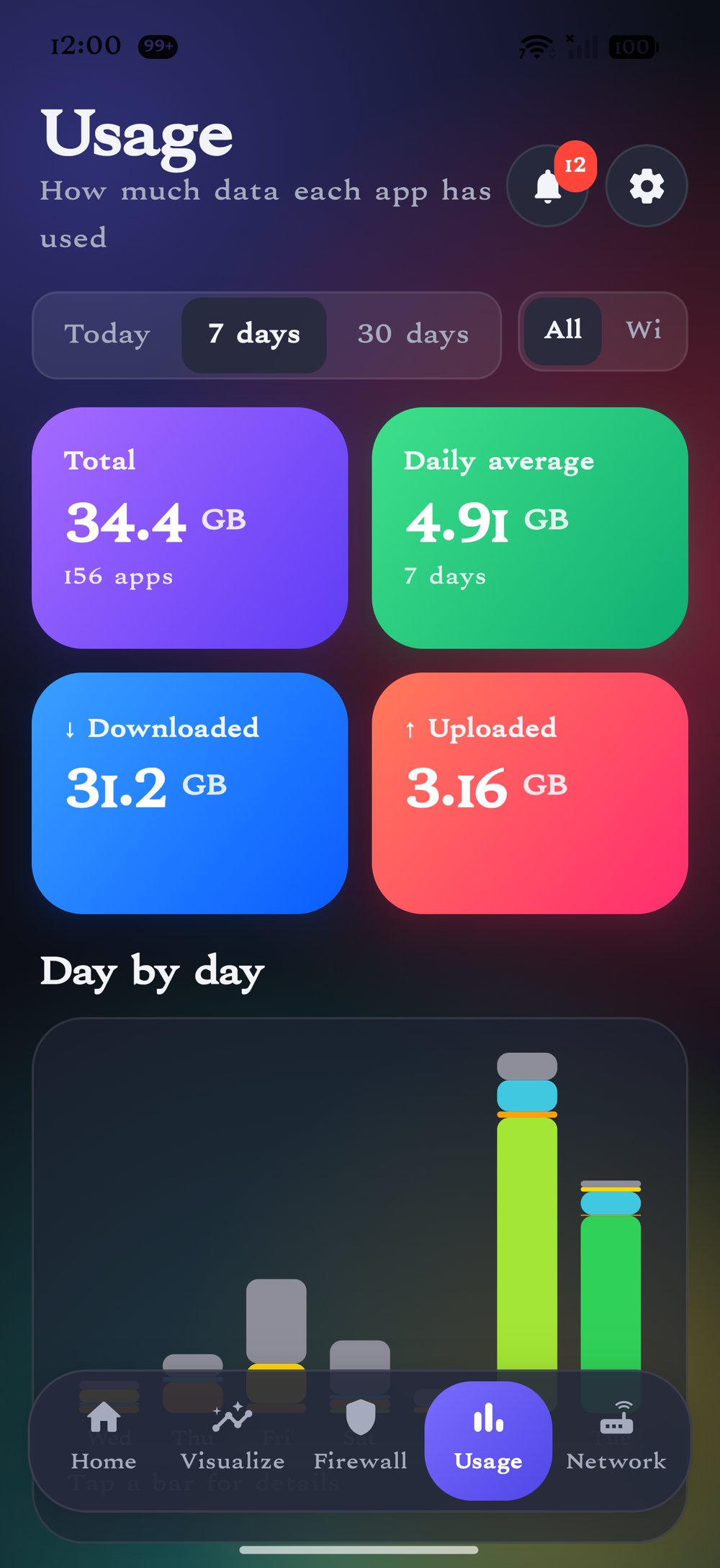
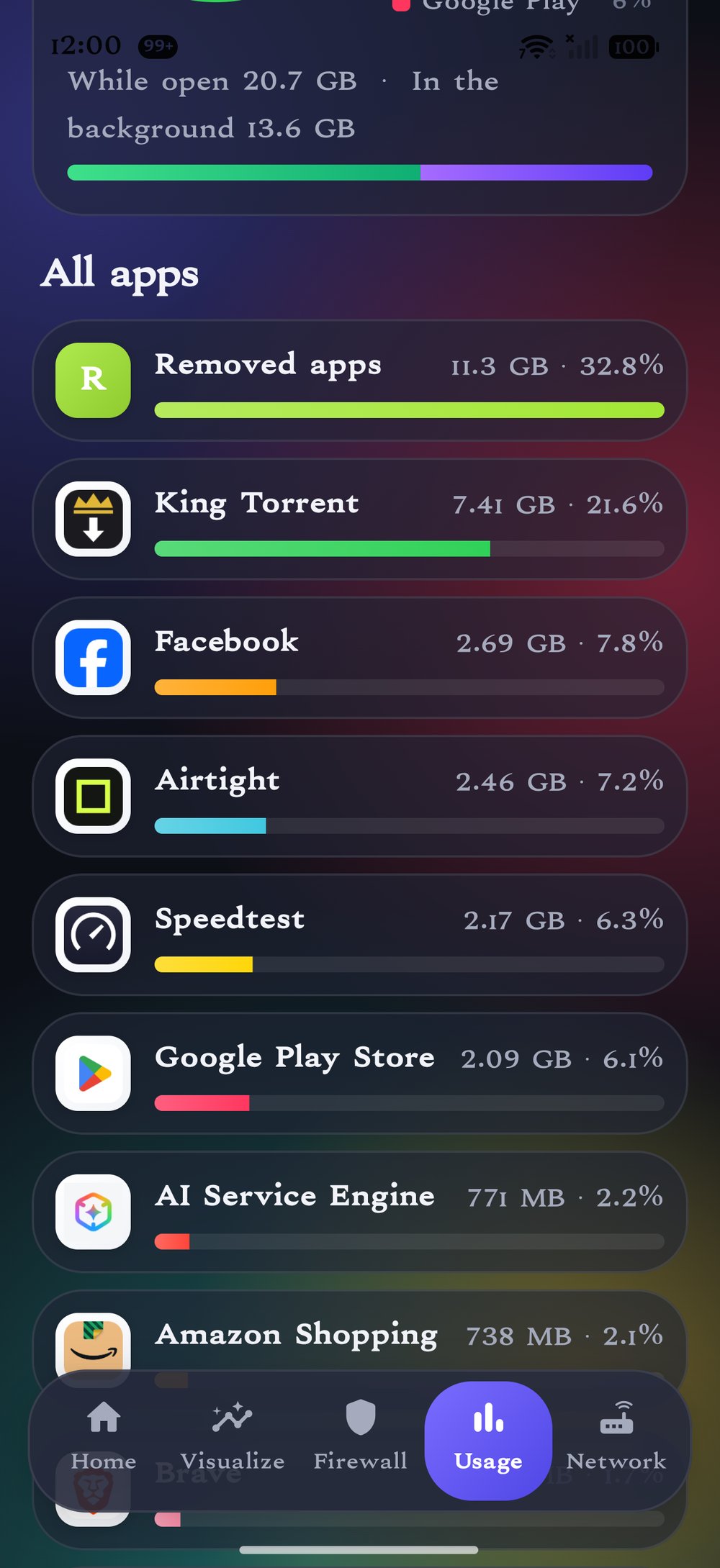
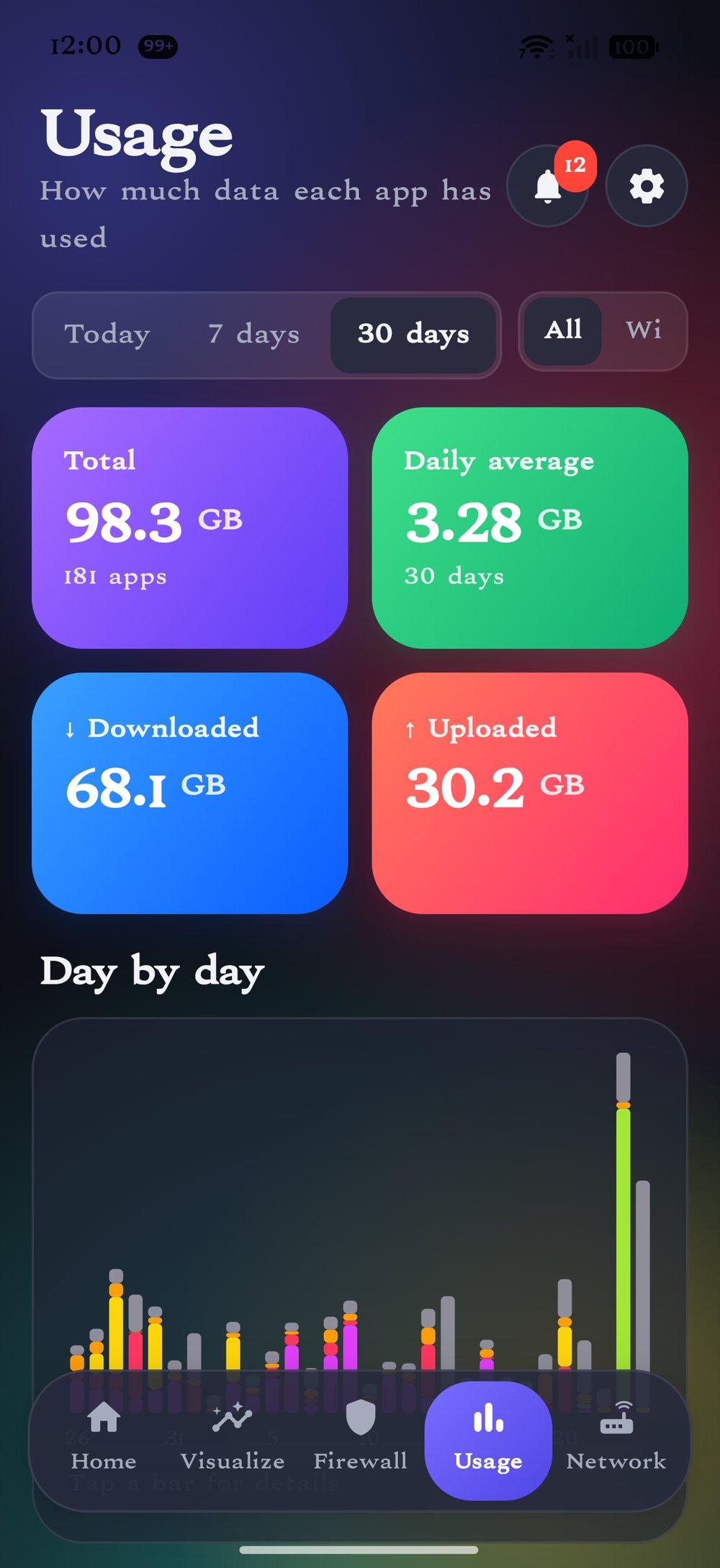
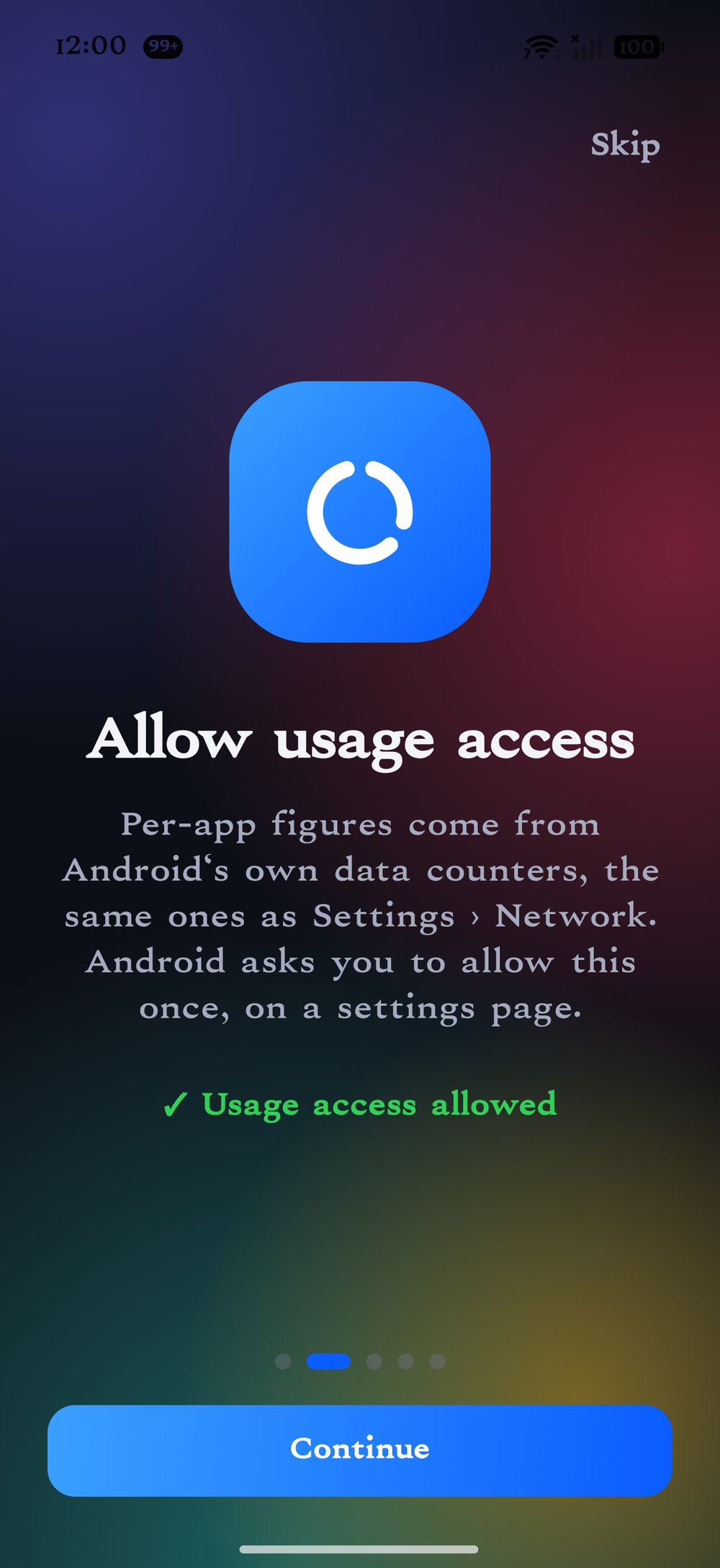
Per-app data for today, 7 days or 30 days. Wi-Fi vs mobile, and foreground vs background. The numbers come from Android's own counters, so they match Settings → Network.
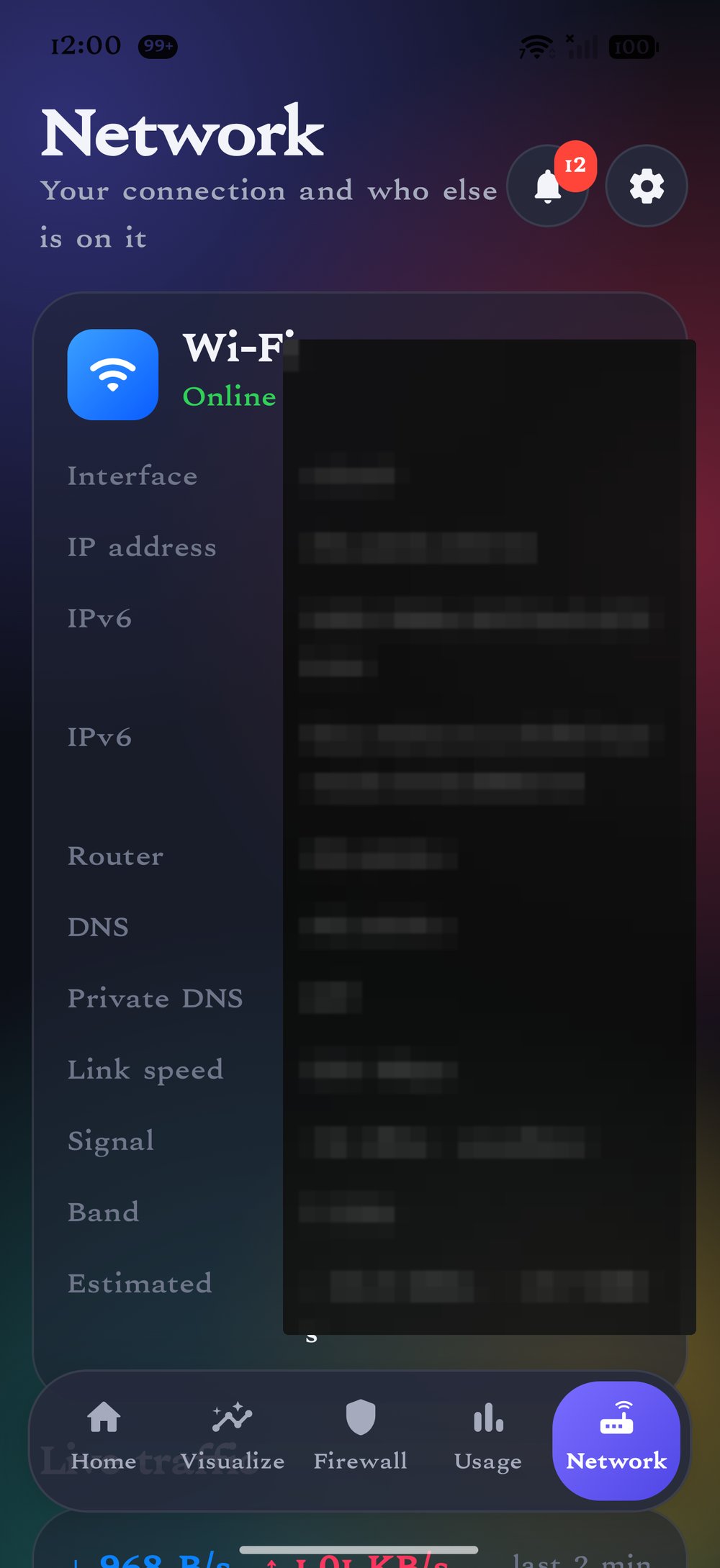
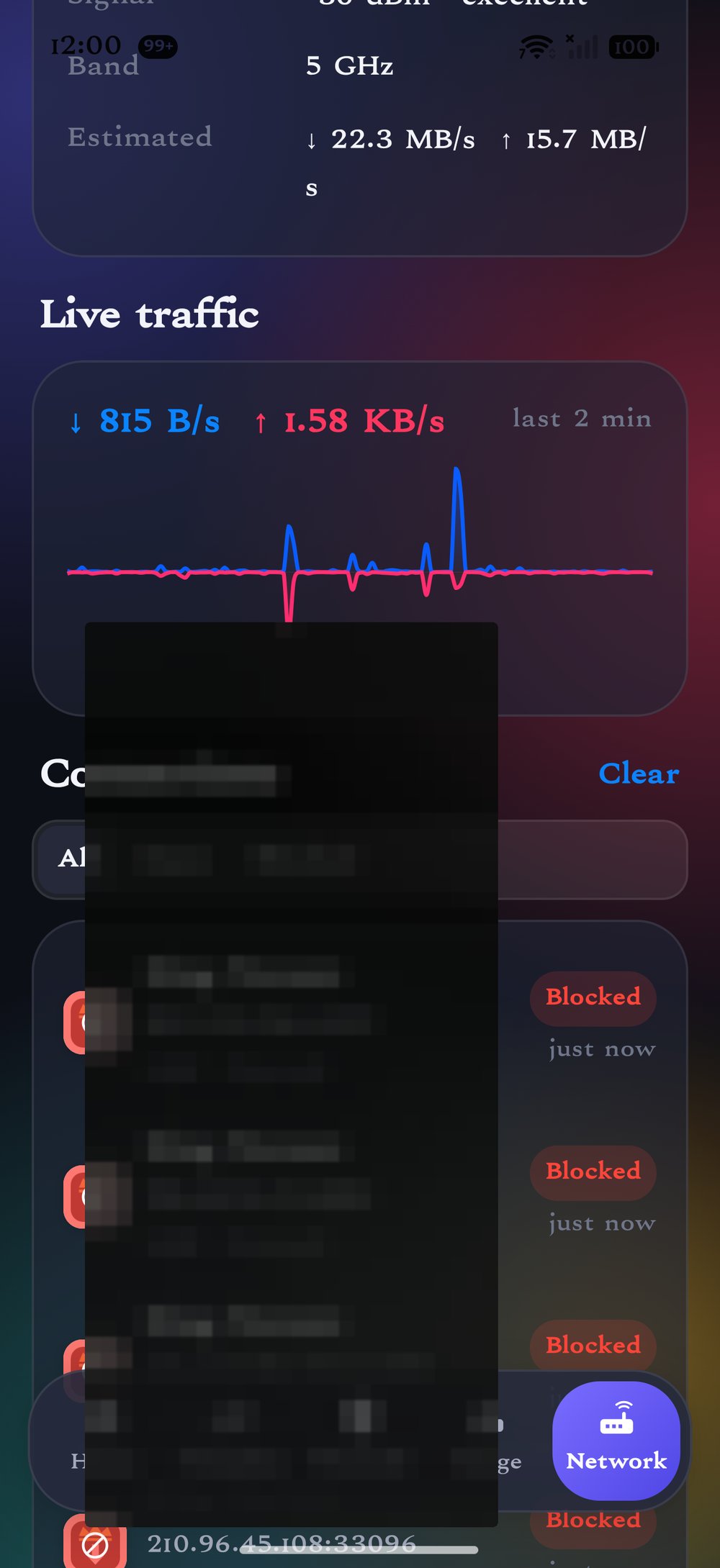
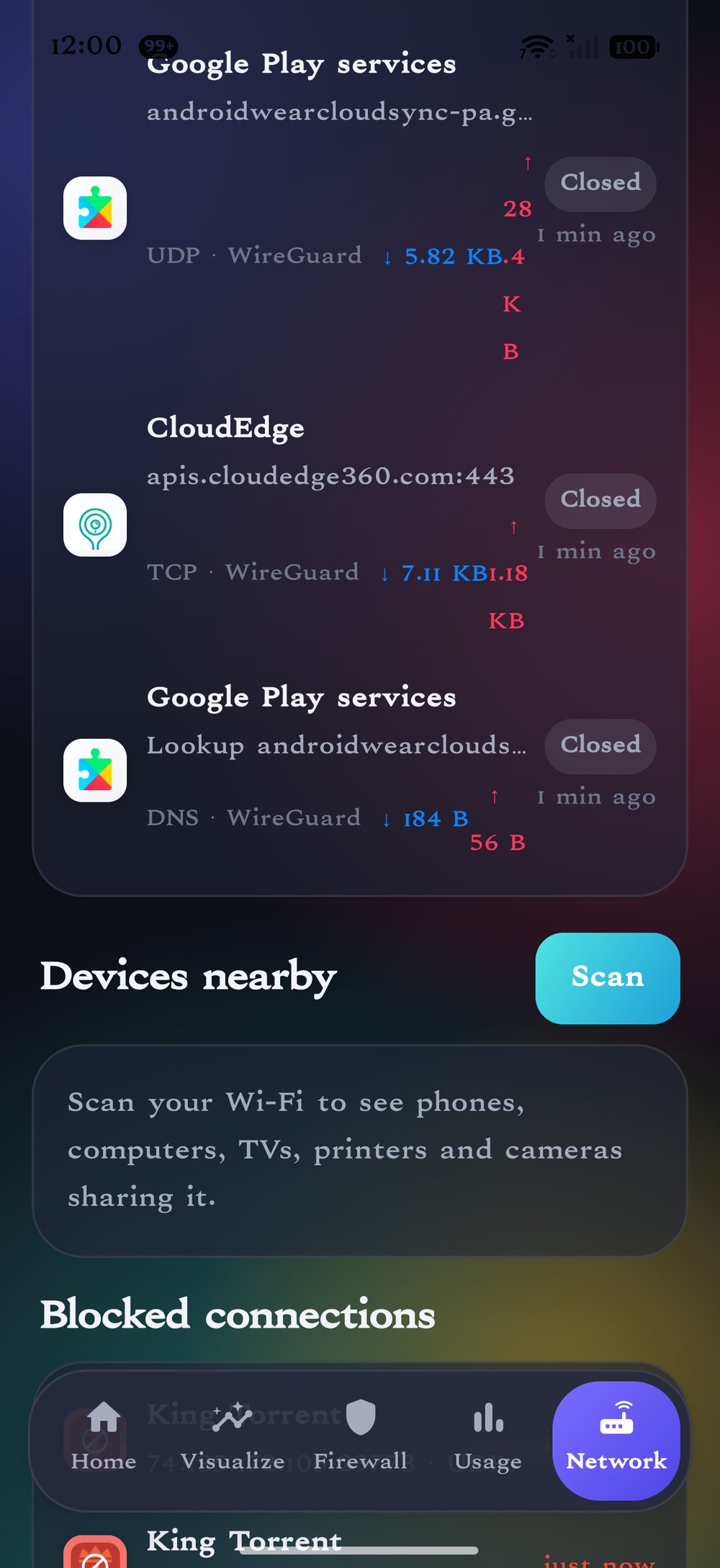
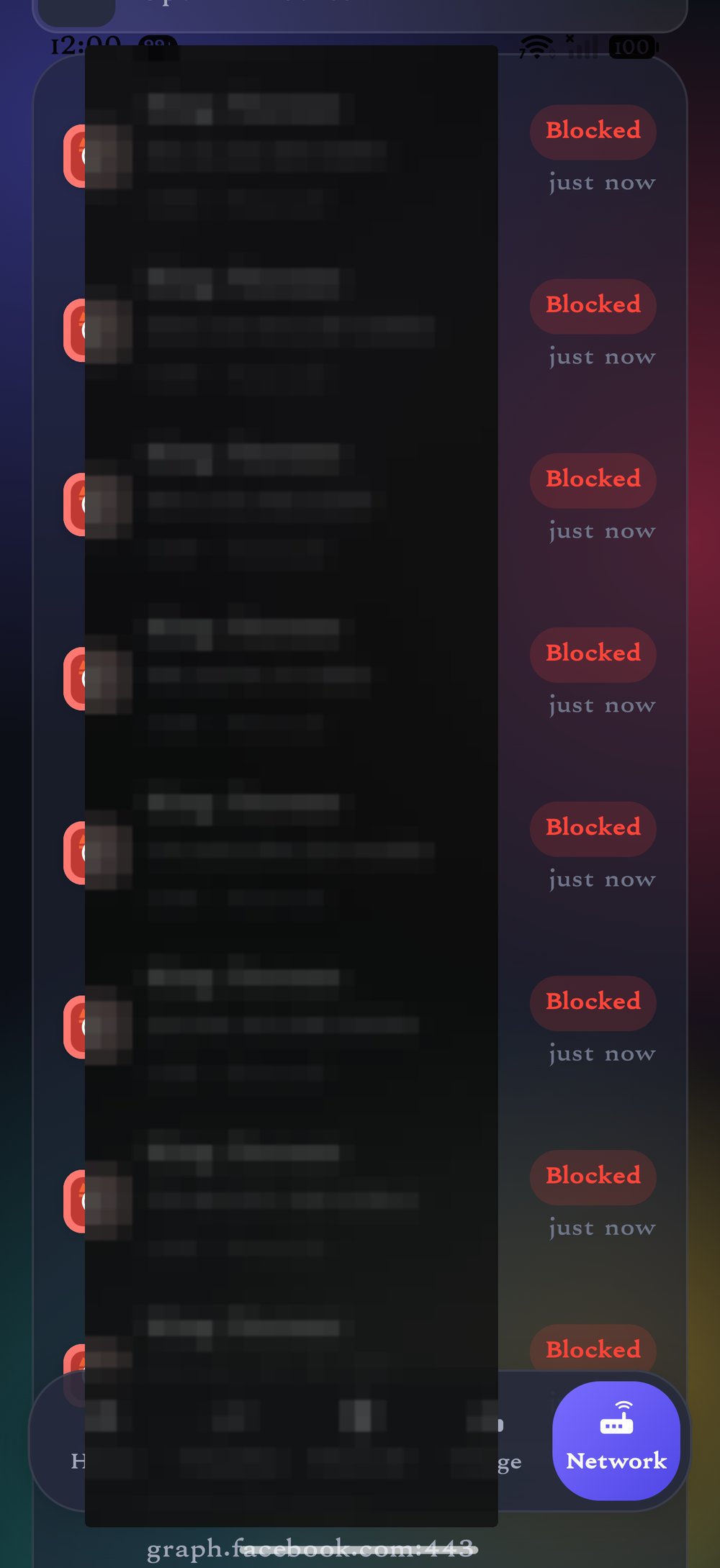
Connection details: network type, interface, IP addresses, DNS, gateway, link speed, Wi-Fi signal and frequency, metered or not, Private DNS. A live traffic graph. A log of blocked connection attempts.
A LAN device scan finds devices on your network with their names, open ports and response times. Scans run only when you start one, and the results stay on the device.
Screenshots of scan results are left out, because they showed personal device names and addresses. The screen below is the scan itself, before any results appear.
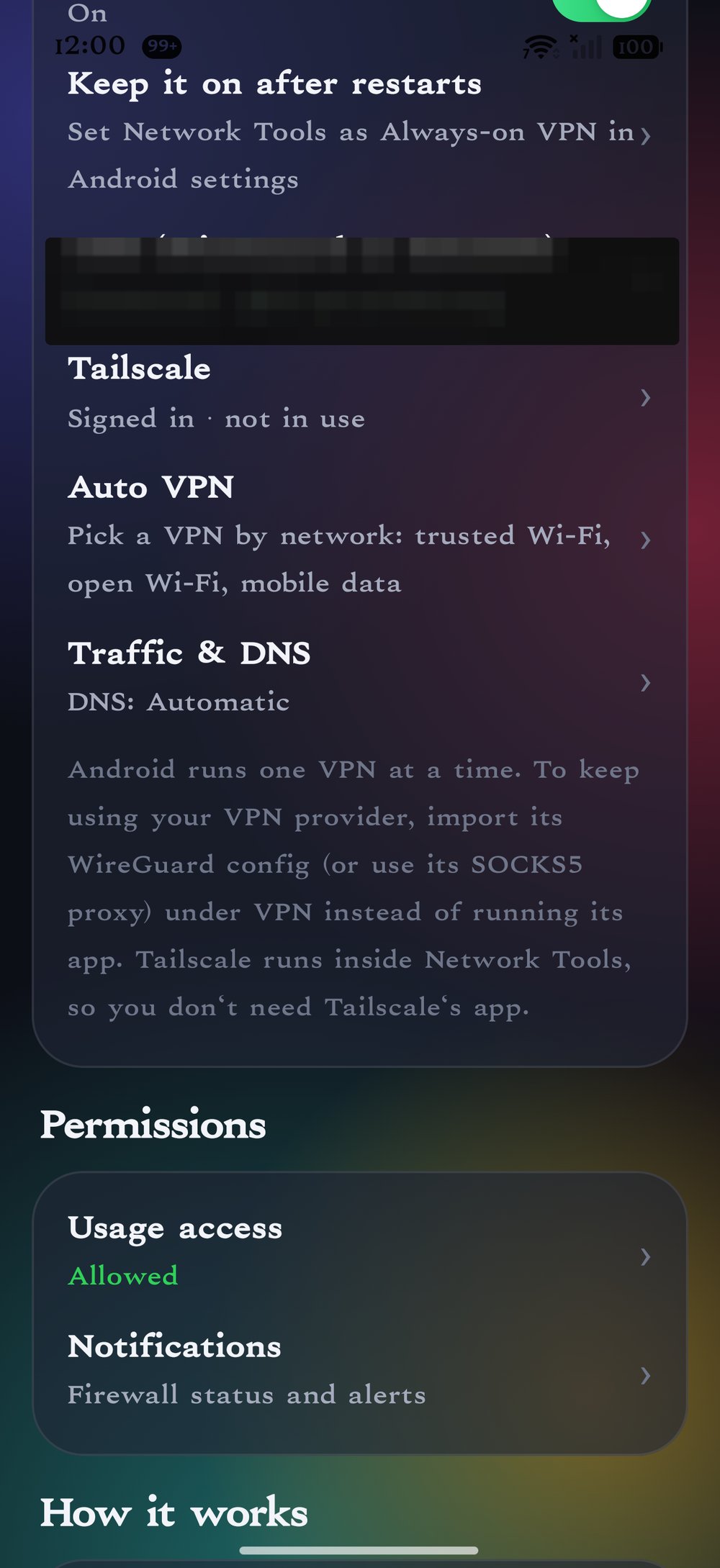
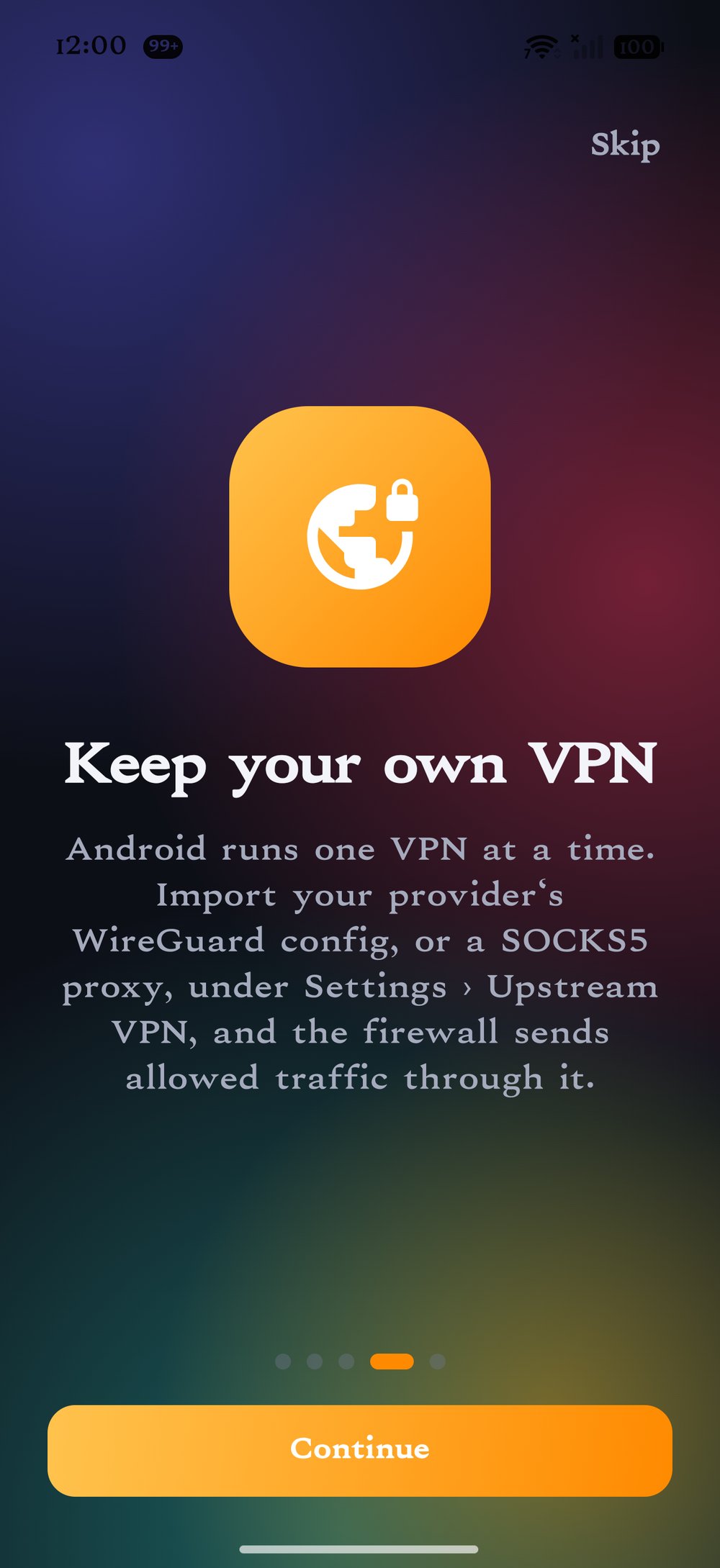
Android allows only one VPN at a time. Ghost Firewall uses that slot, then chains your tunnel inside itself, so the firewall and the VPN work together. Switching between tunnels always stops the old one before starting the new one.
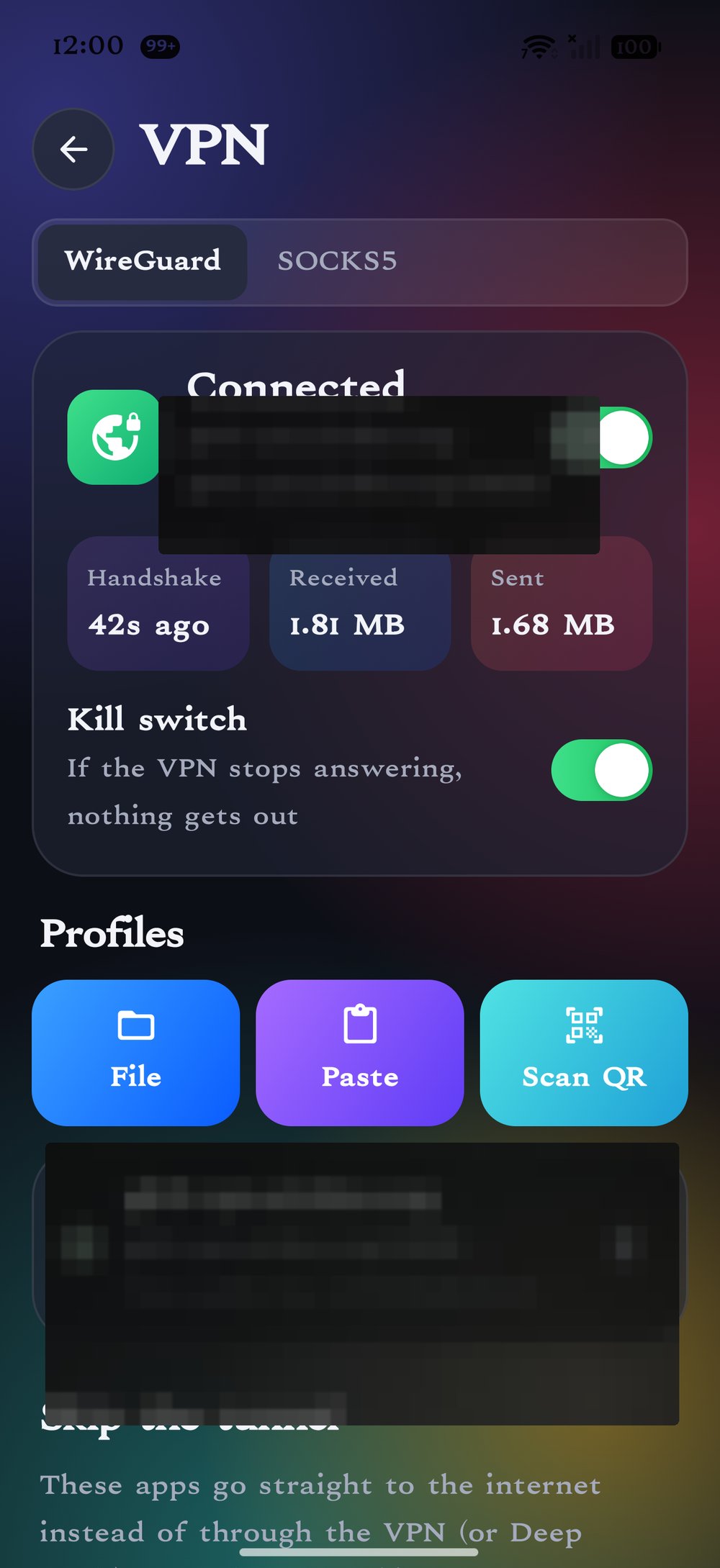
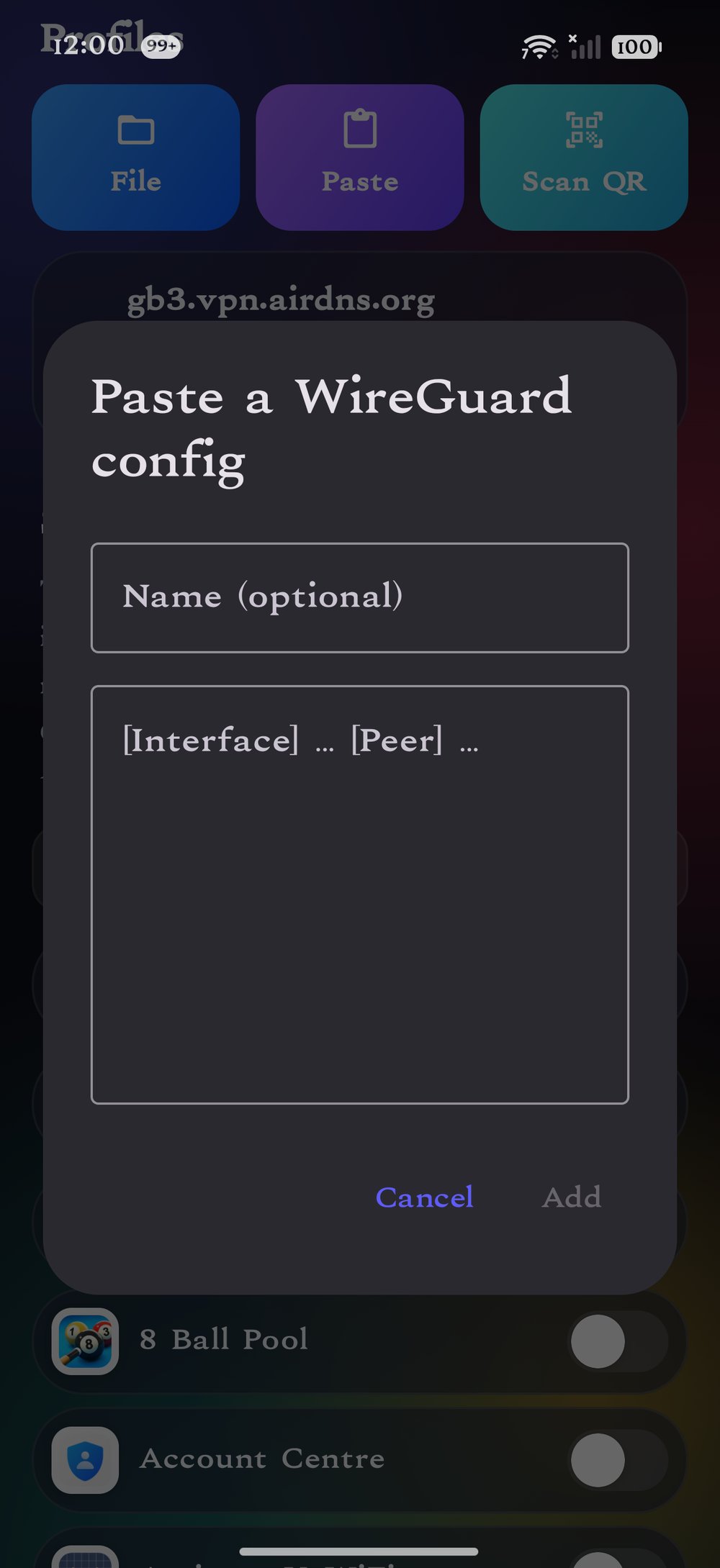
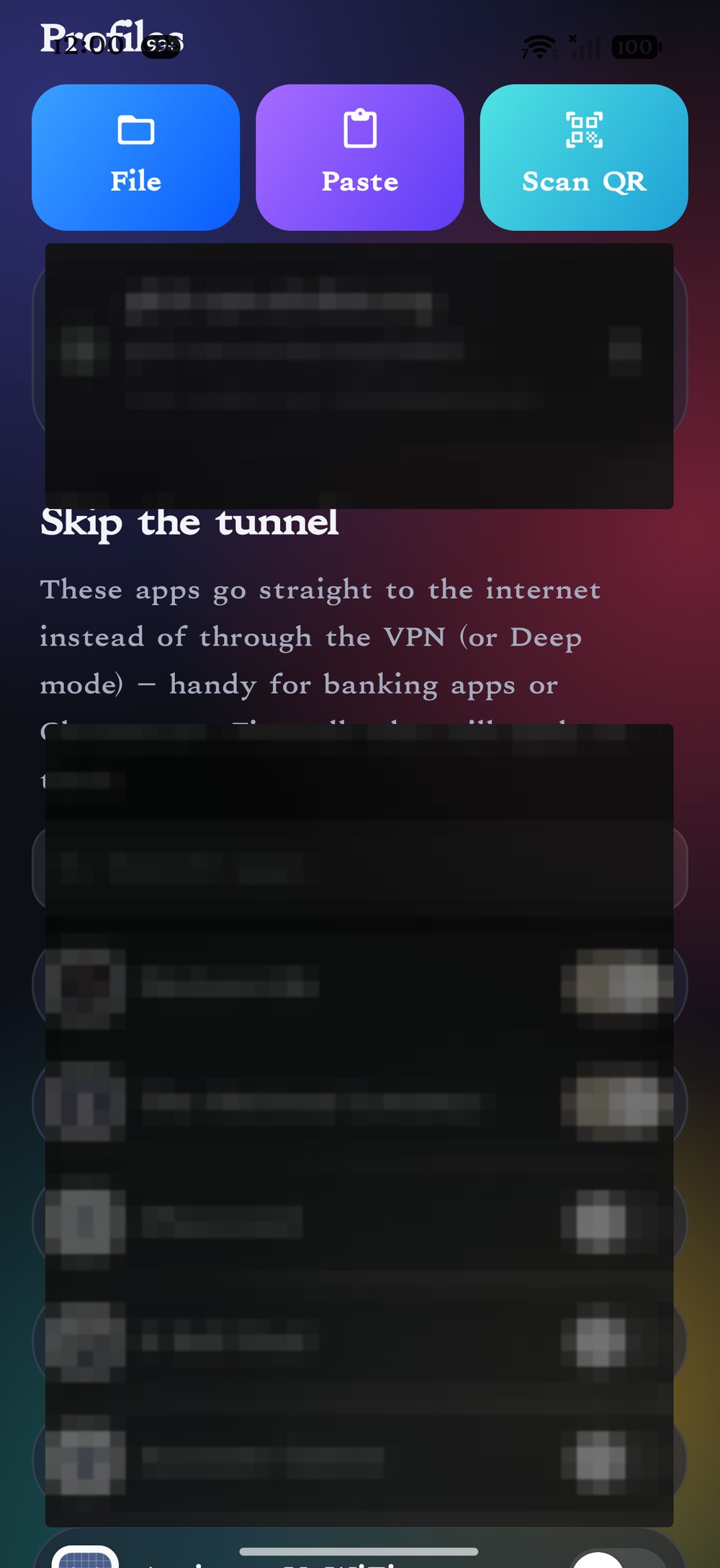
WireGuard, with our own implementation written from scratch. Add your provider's config from a file, by pasting it, or by scanning its QR code. Several profiles, stored encrypted with a key held in Android's secure key store. Kill switch: if the server stops answering, all traffic is held rather than sent unprotected. Skip the tunnel: chosen apps go direct but still follow the firewall rules. DNS goes through the tunnel, and IPv6 is blocked if the config has no IPv6 address, so neither leaks. It reconnects straight away when you move between Wi-Fi and mobile.
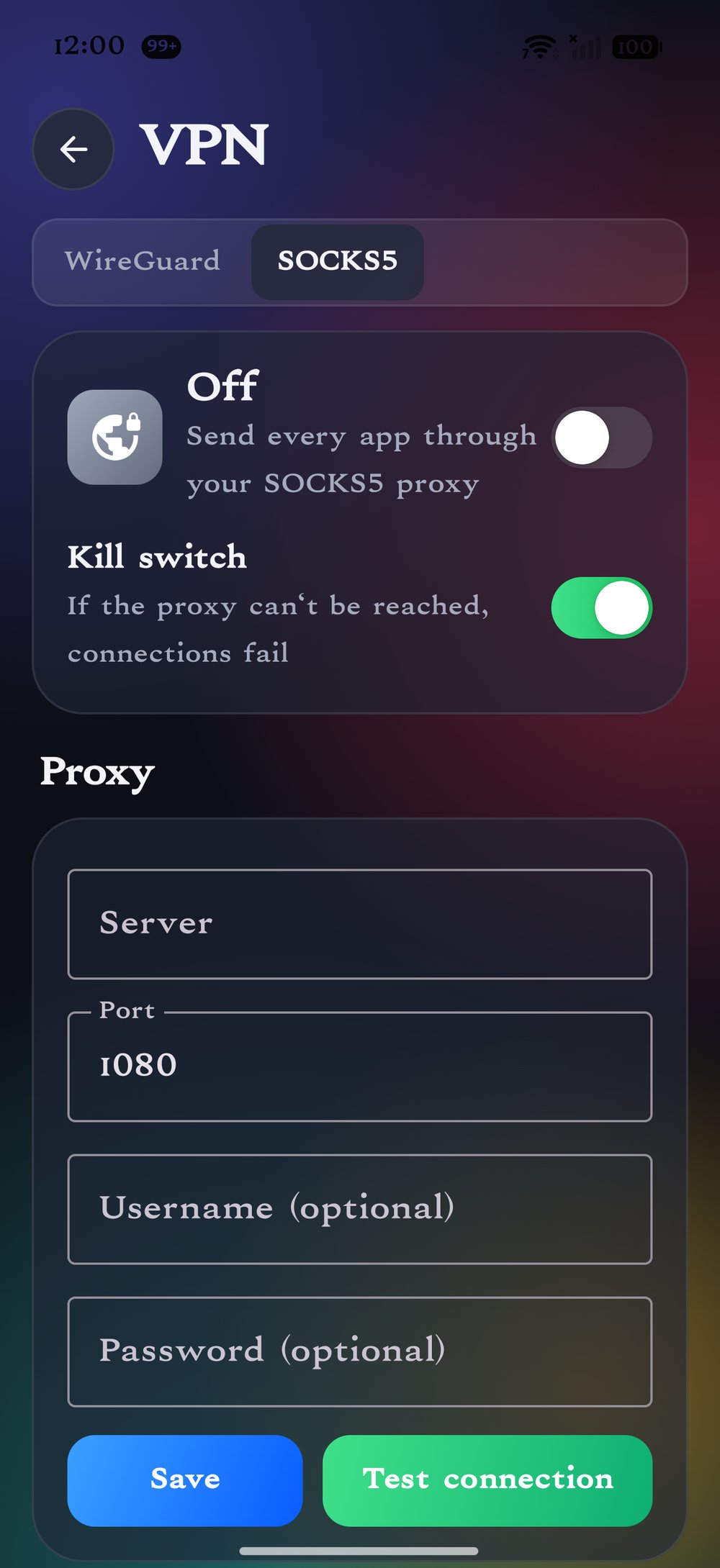
SOCKS5 proxy: optional username and password, stored encrypted; a Test button; UDP goes through the proxy where it supports it; its own kill switch.
Getting Tailscale and a VPN to work together was difficult, but we did it.
We managed to get a proper working kill switch for when the VPN changes over to Tailscale and the Tailscale then changes back into the VPN, there is a kill switch that doesn't let any traffic through during that time.
Tailscale is one of the four VPN choices on the Home control card: Off · My VPN · Tailscale · Auto. When it's running, the status line can show “Tailscale · Connected”, and › opens its settings.
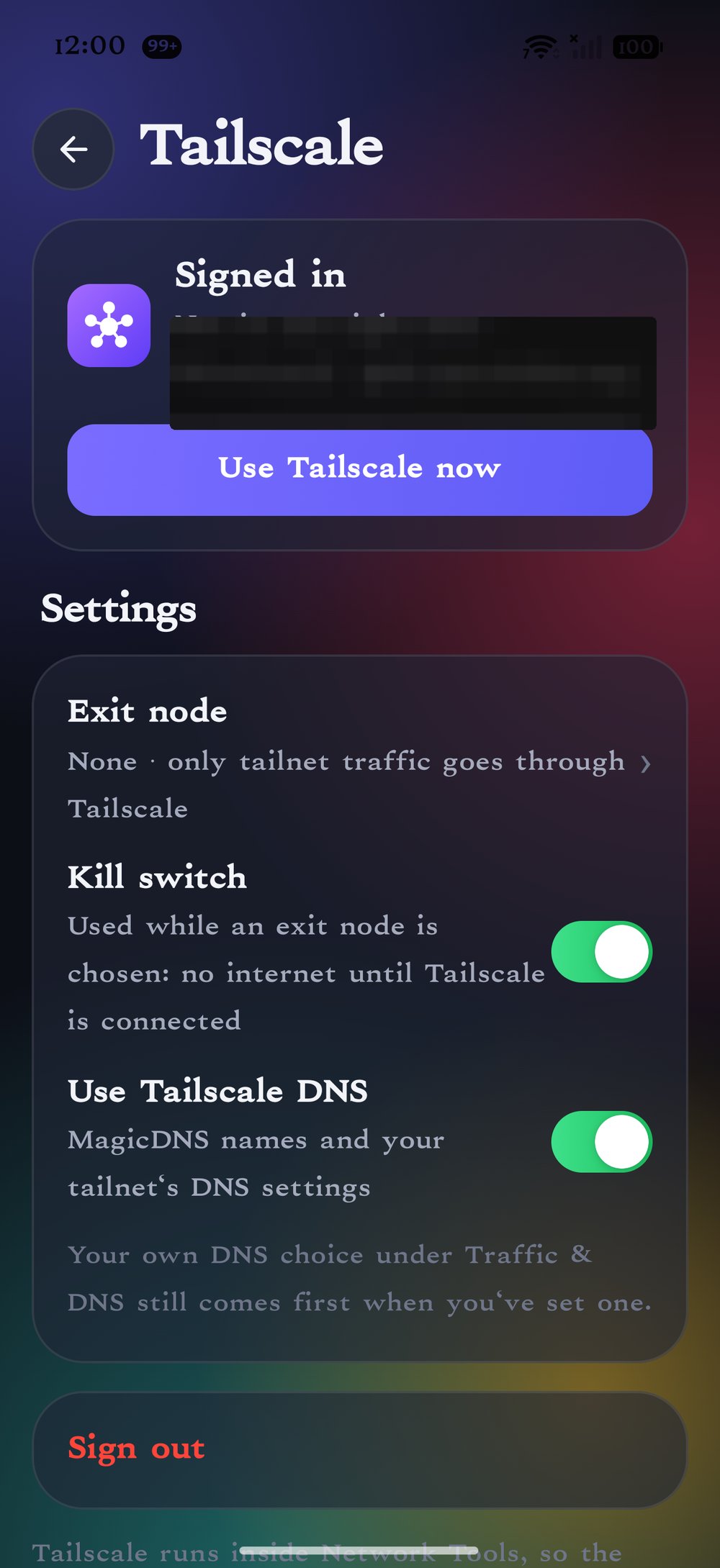
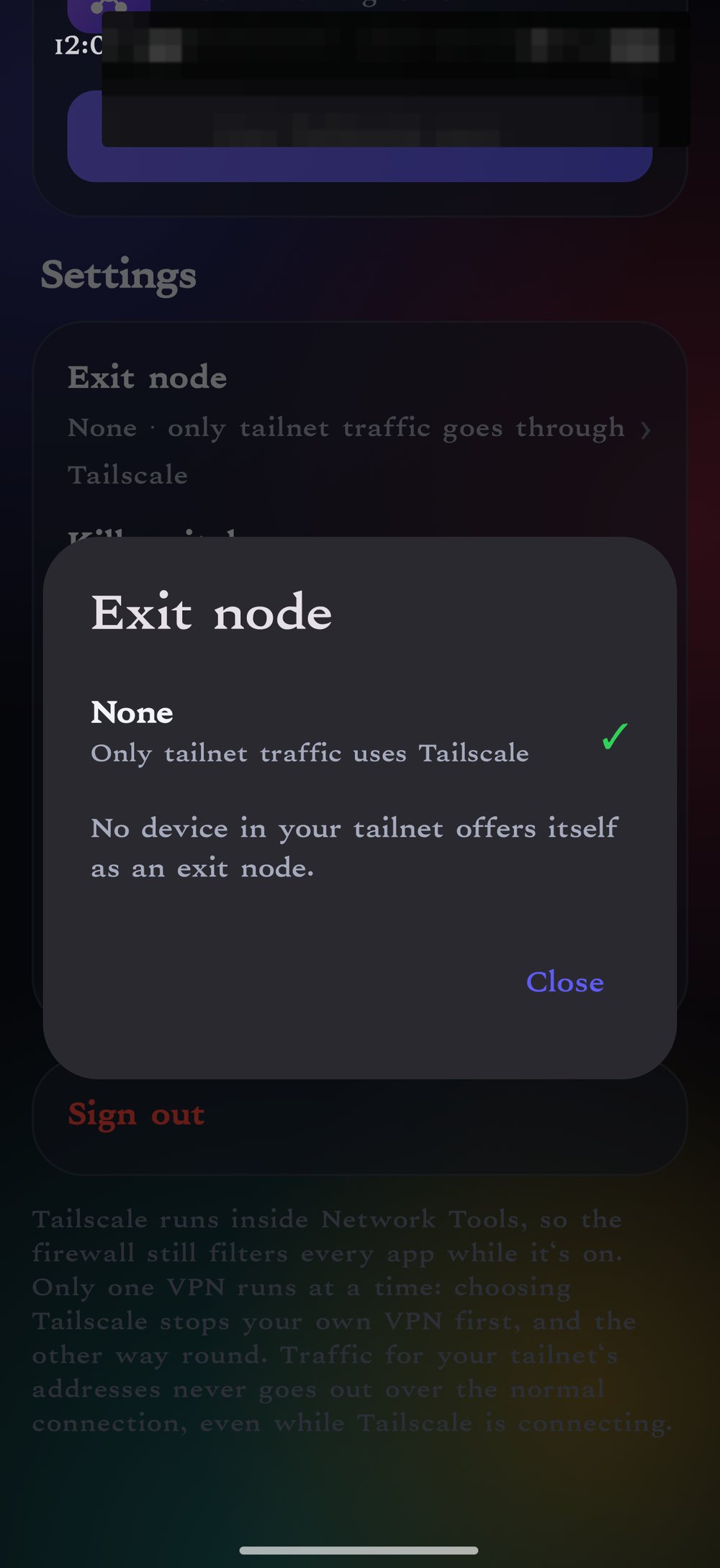
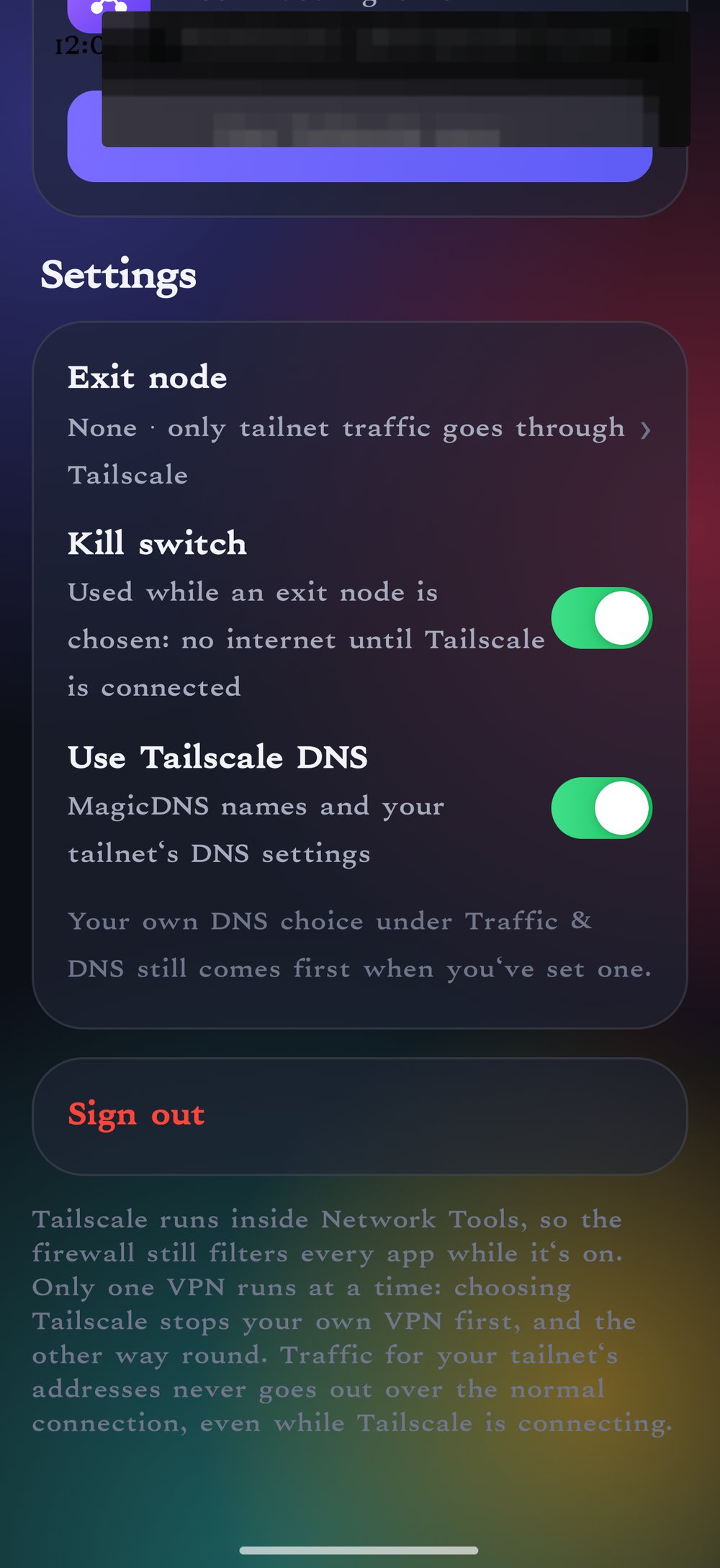
Tailscale's own open-source engine runs inside the app, so you don't need Tailscale's app. The firewall still filters every app while it's on. Sign in in your browser, with an auth key, or with your own server (Headscale). It can show your tailnet, this device's address, and your devices with who's online. There is an exit node picker, with Allow local network access for your router, printers and so on. A Use Tailscale DNS switch for MagicDNS names. And Sign out.
Safety: traffic for tailnet addresses never goes out on your normal connection. With an exit node chosen, the kill switch holds every app until Tailscale is connected.
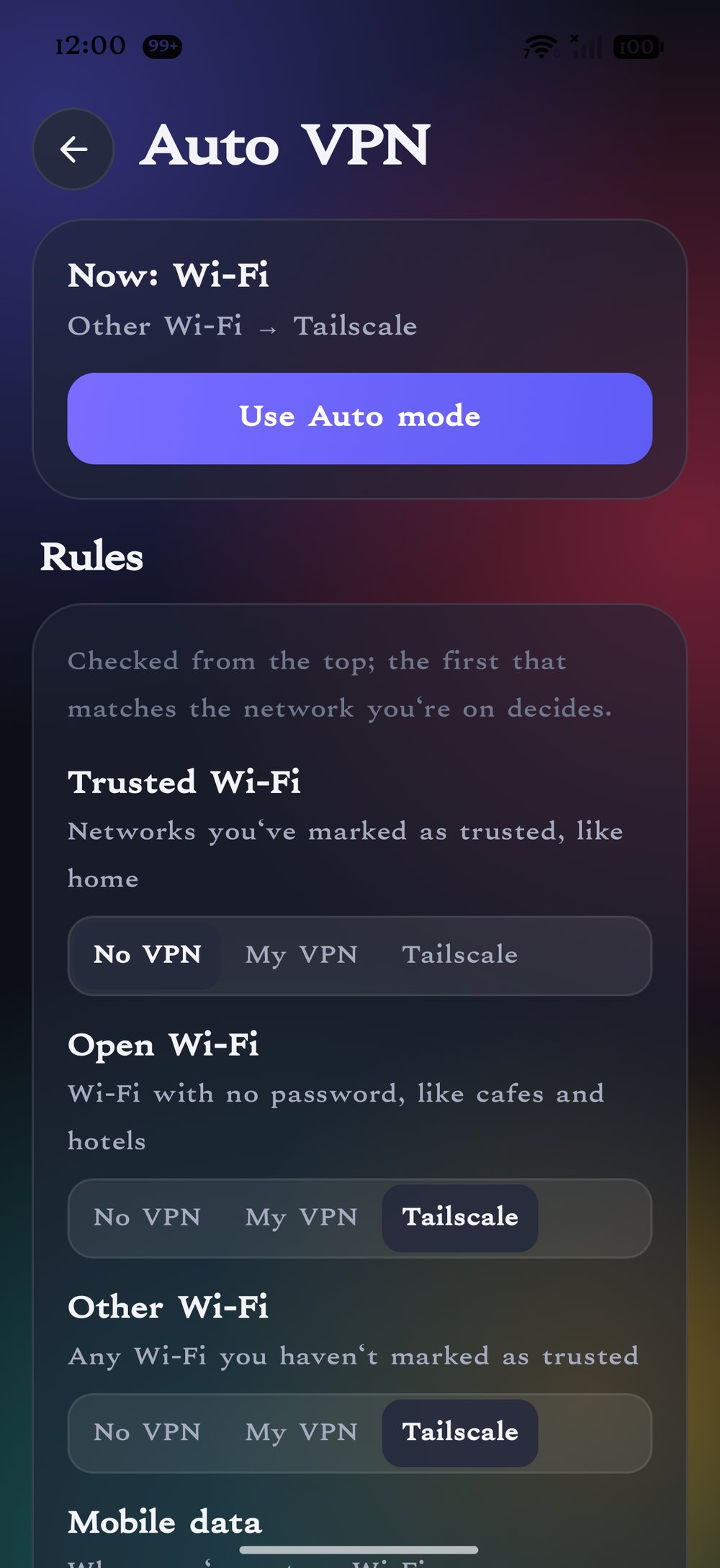
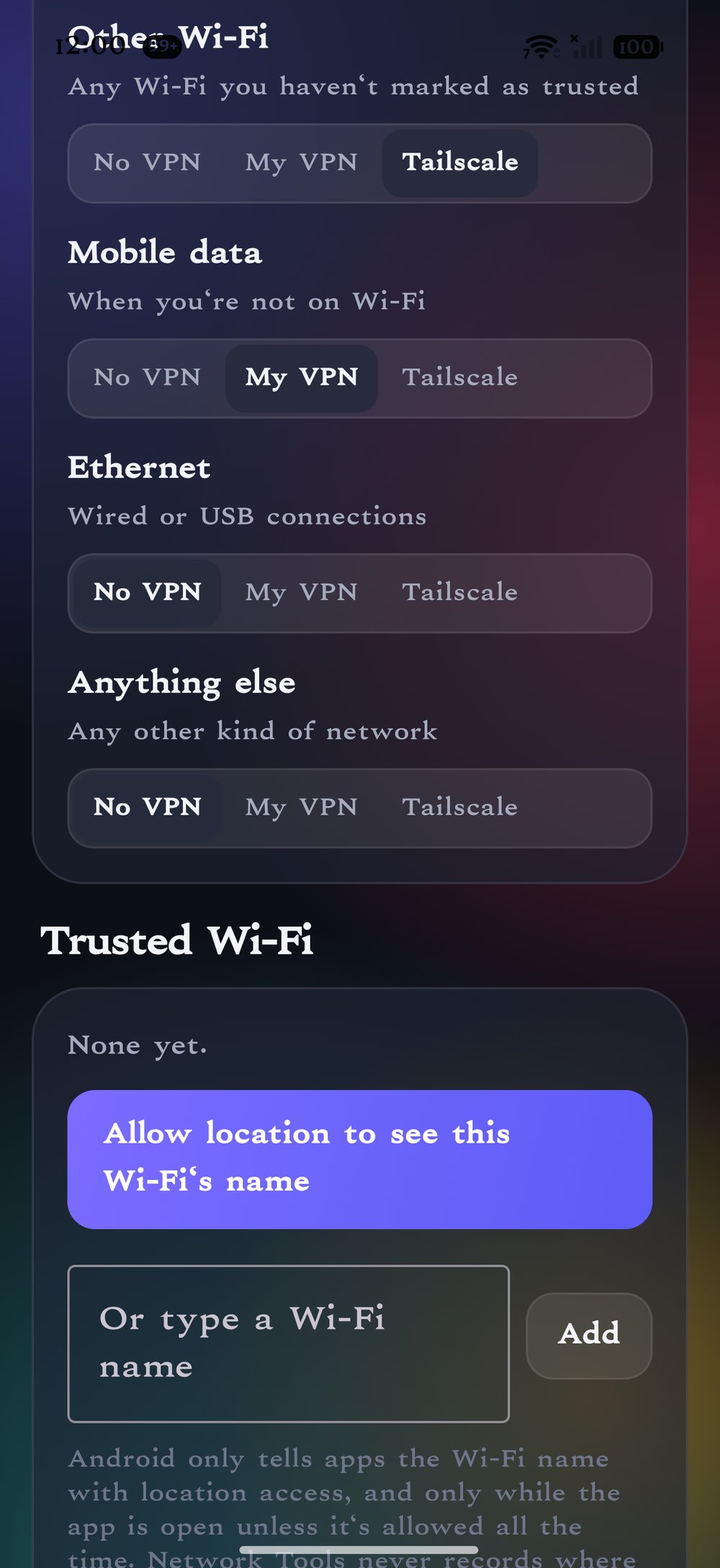
Auto picks the tunnel by network, and can use Tailscale on open or other Wi-Fi. It checks these from the top, and the first match decides. You can change every rule. To trust a Wi-Fi network, tap “Trust” while connected to it, or type its name. It switches about 3 seconds after the network changes, so quick drop-outs don't make it flip back and forth.
| Network | Default |
|---|---|
| Trusted Wi-Fi | No VPN |
| Open Wi-Fi | Tailscale |
| Other Wi-Fi | Tailscale |
| Mobile data | My VPN |
| Ethernet | No VPN |
| Anything else | No VPN |
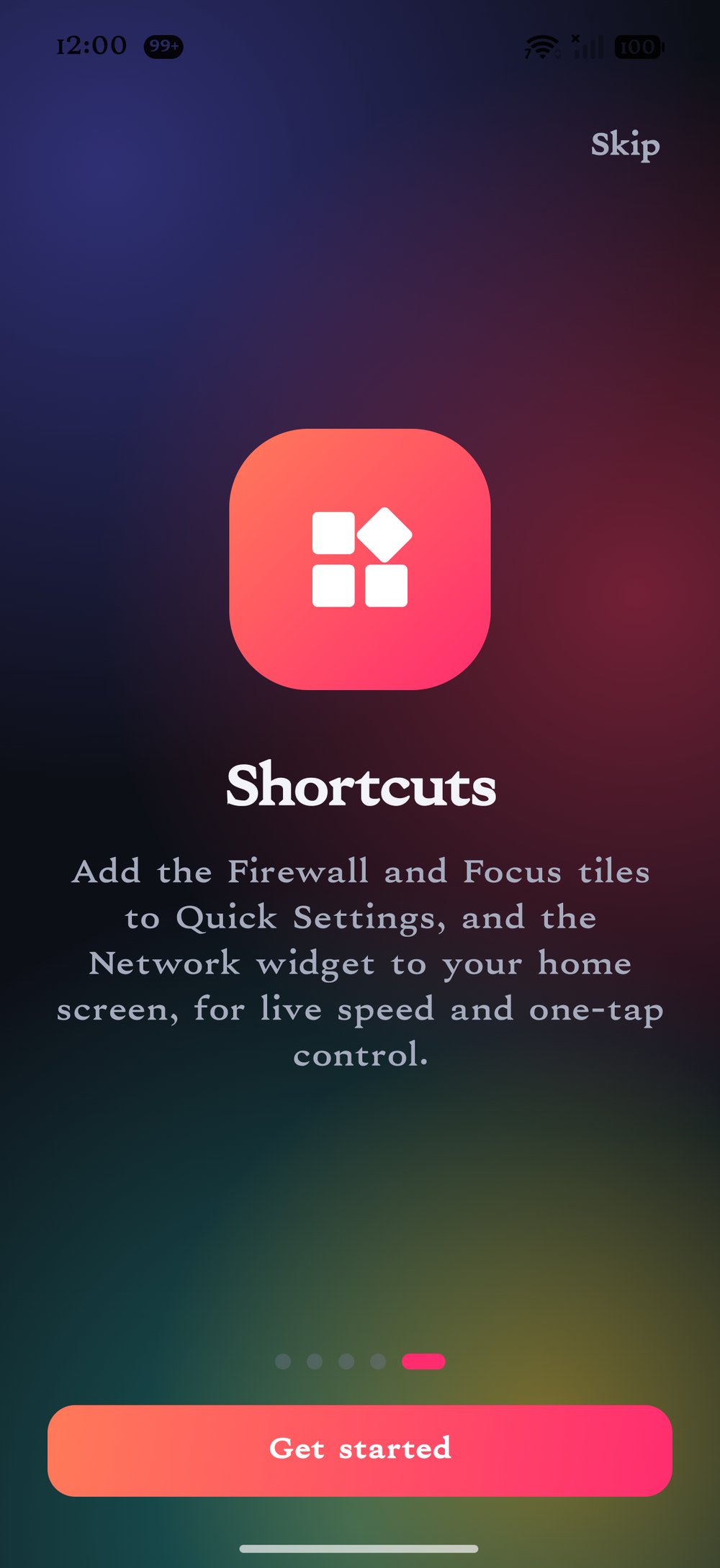
Outside the app: Quick Settings tiles for Firewall, Focus mode and VPN; a home-screen widget with live speed, today's data, a firewall switch and a VPN button; and a notification with firewall status and a “Turn VPN on/off” button. VPN on from any of these brings back the mode you used last. There aren't screenshots of the tiles, widget or notification in this set. Always-on: the app can be set as Android's always-on VPN, so it survives restarts.
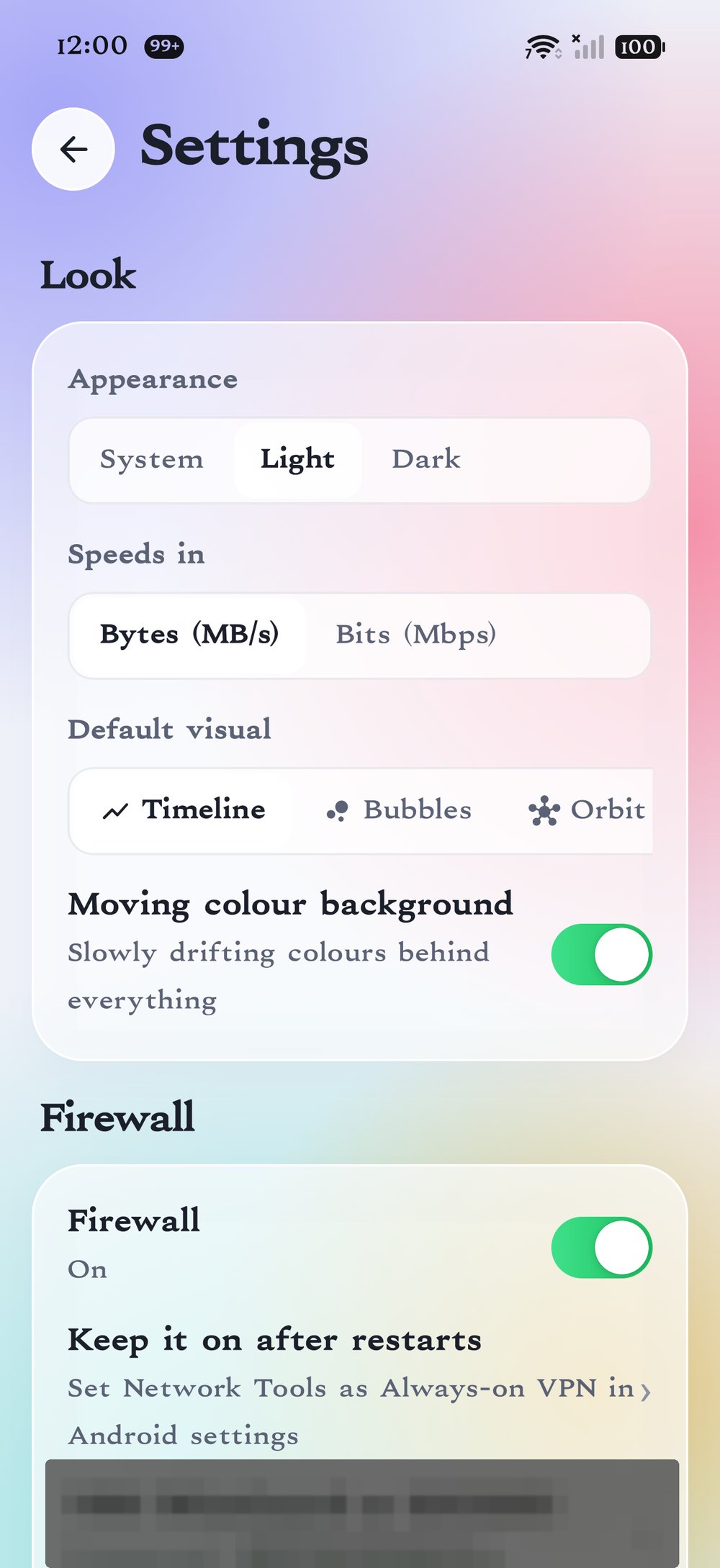
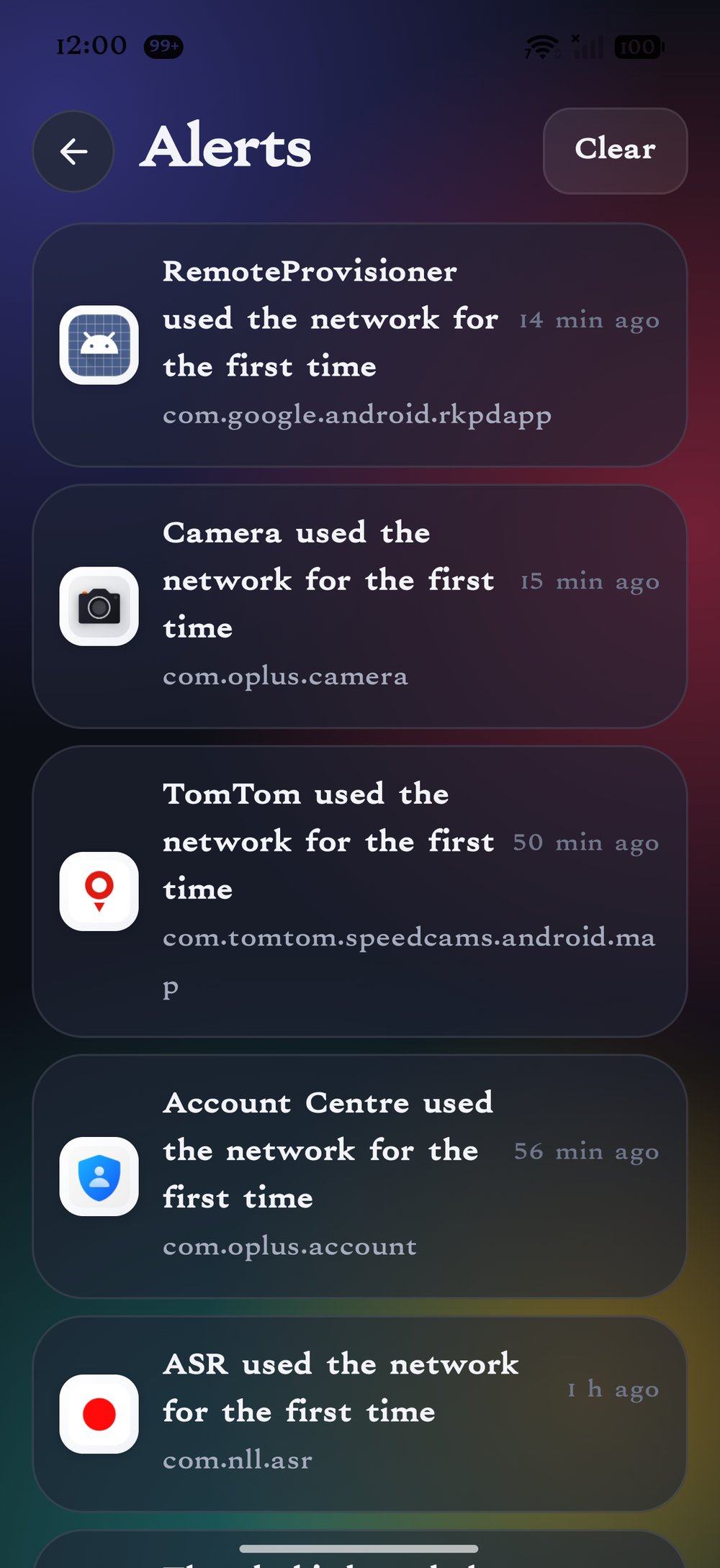
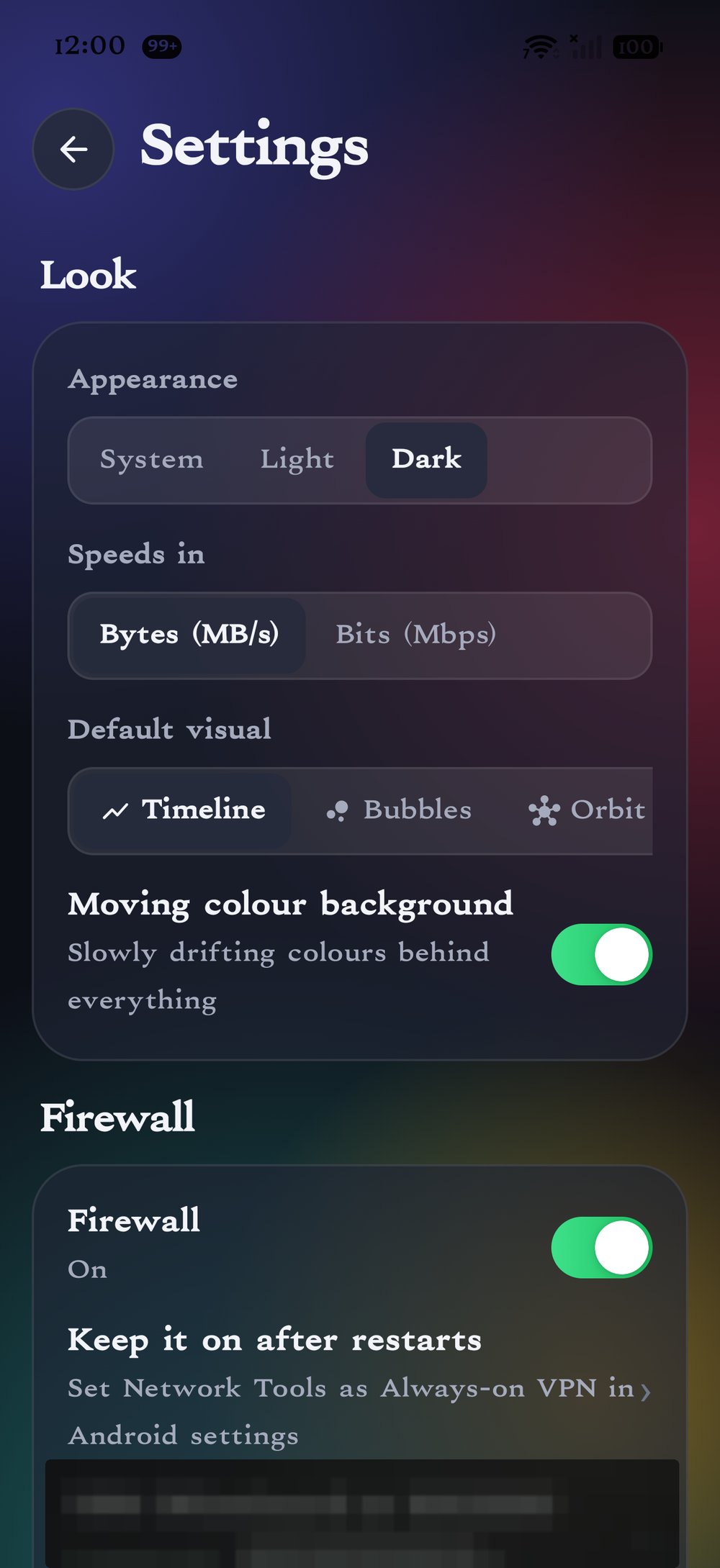
Look and settings: dark, light or follow the system. Speeds in bytes or bits. Default visual mode. An optional slowly moving colour background. Frosted-glass cards, Apple-style toggles, and gradient icons. There is also a five-step welcome guide, and Alerts (firewall switched off by another VPN app, apps using a lot of data, blocked attempts).
No accounts, no analytics, no ads. Keys and passwords are never logged or shown, and they're left out of backups. The app only connects to the internet for the VPN, proxy or Tailscale connection you set up (Tailscale also talks to Tailscale's servers, or your own Headscale server); and a LAN scan you start yourself. Location is only asked for if you want Auto to recognise trusted Wi-Fi by name. Your location is never recorded.
Not in it, by choice: no tracker or ad blocking. Changing the DNS server is the alternative.
Ghost Firewall helps control your device's network traffic, but no firewall or VPN can guarantee protection from every threat. Don't rely on it as your only security, and don't use it for safety-critical purposes.
Read the privacy policy and terms.
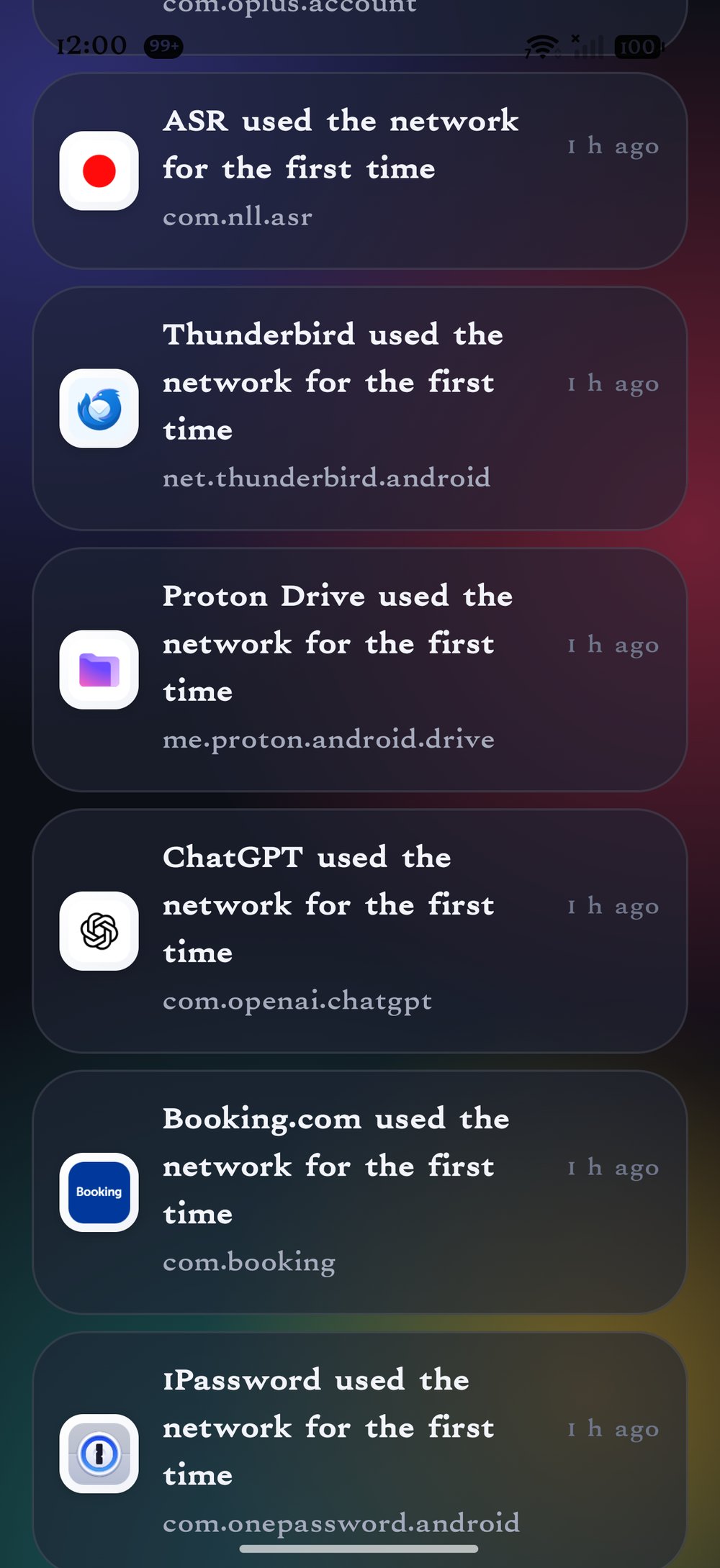
A full gallery of the screens used on this site. Tap a shot to enlarge it. Some still show the old in-app name. Sensitive details have been redacted or left out.
Start with a 7-day free trial. Prices include VAT. Payment is collected by Google Play.
£3.99 a month
Prices include VAT
£22.99 a year
Prices include VAT
Your free trial lasts 7 days. Unless you cancel in Google Play before it ends, your subscription starts automatically at £3.99 per month or £22.99 per year. You can cancel any time in Google Play.
Not yet. Ghost Firewall is Android-only for now. Android lets apps see and control each app's network traffic, which a per-app firewall needs, and iPhone doesn't allow that in the same way.
Android 10 and later. Ghost Firewall is Android-only for now.
Yes. Android allows only one VPN at a time, so Ghost Firewall chains your tunnel inside itself. Import a WireGuard config, use a SOCKS5 proxy, or run Tailscale (or your own Headscale server) inside the app.
Auto picks the tunnel based on the network you're on. You can change every rule. For example, Open Wi-Fi and Other Wi-Fi default to Tailscale, and mobile data defaults to My VPN.
Only high-priority apps stay online. You set each app to High, Normal or Low. Low-priority apps go offline while the screen is off, so they can't use data in the background.
No. There are no accounts, no ads and no analytics.
No. That was left out on purpose. Changing the DNS server is the alternative.
It's coming soon. The button on this page is not live yet.